
Table of Contents

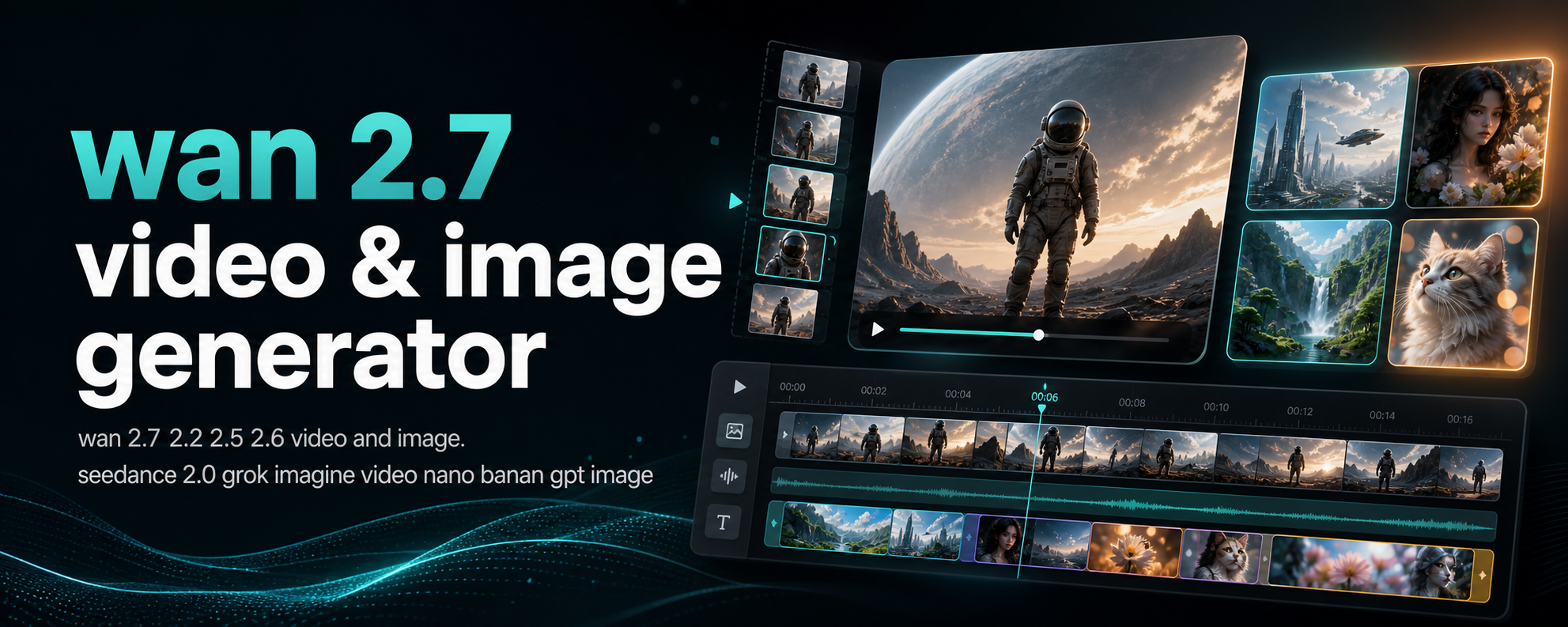
Image-to-video is where Wan 2.7 becomes a production tool: you lock the look with a source frame, then you control what changes.
If your I2V results feel “off,” it’s almost always one of these:
- the source image is hard to animate
- your prompt describes appearance instead of motion
- the camera behavior is unspecified
Here’s the workflow that fixes those problems.
Step 1: Pick a Source Image the Model Can Animate
Good source images are:
- clear subject (not tiny, not occluded)
- simple background (or at least readable separation)
- natural pose (room to move)
- consistent lighting (no harsh clipping)
Bad source images are:
- extreme angles or warped faces
- cluttered scenes with many small elements
- heavy motion blur
- tiny subjects in wide shots
If you want the video to look professional, start with a frame that already looks professional.
Step 2: Write Motion-First Prompts (Stop Re-Describing the Photo)
The source image already defines:
- the character’s face
- the outfit
- the setting
Your prompt should focus on what changes:
- subject motion
- camera motion
- atmosphere shifts (wind, rain, particles, light)
Good I2V prompt:
The camera slowly pushes in as the subject turns to look over their shoulder, hair moving gently in the wind, subtle natural breathing motion, cinematic lighting remains consistent.
Weak I2V prompt:
A beautiful person with detailed eyes in a garden (this just repeats what’s already in the image).
Step 3: Use One Camera Move, Not Five
Choose one:
- static camera
- slow push in
- slow pull back
- pan left/right
- orbit
- tracking shot
If you want identity stability, avoid aggressive camera moves in early drafts. Lock motion first, then add camera complexity.
Step 4: Iterate Like a Studio (Draft → Final)
Run this loop:
- Draft at 720p to validate motion direction
- Adjust prompt to fix drift or stiffness
- Final at 1080p when the clip behaves
This saves credits and produces better finals because you only pay for high quality once.
Step 5: Fix the 4 I2V Issues Everyone Hits
Issue A: The face morphs
Fixes:
- reduce prompt complexity
- keep motion subtle
- avoid “big emotional acting” in the first pass
Issue B: The body does something unnatural
Fixes:
- specify a small, human motion: “blink”, “smile”, “turn head”
- avoid impossible actions (teleporting, extreme contortions)
Issue C: The background wobbles
Fixes:
- use a cleaner source image
- reduce camera motion
- avoid cluttered backgrounds for your first draft
Issue D: It ignores your motion instruction
Fixes:
- rewrite motion as a clear sentence
- remove conflicting terms
- add the camera instruction explicitly
Try Wan 2.7 I2V Now
If you want to run this workflow in the browser:
- Generate I2V clips with Wan 2.7 Image
- Compare plans at wan27.org/pricing