
Table of Contents
You open Wan 2.7, type a prompt, generate — and the result is okay. Not bad, not great. The camera drifts. The character looks different from last time. The motion feels slightly off. You adjust something, regenerate, and get a different set of problems.
Most Wan 2.7 guides explain what each button does. What they do not explain is how these features actually behave — the interaction effects, the parameter trade-offs, and the counterintuitive behaviors that separate a decent clip from a production-ready one. That is what this guide covers.
After generating thousands of clips across text-to-video, image-to-video, reference-to-video, and editing workflows in 2026, certain patterns have emerged — workflow shortcuts, parameter tricks, and feature interactions hidden from the UI that make a real difference in output quality and generation speed.
By the end of this guide, you will know which settings to adjust for each scenario, how to cut iteration time by 40–60%, and which credit-wasting habits to drop before they cost you.
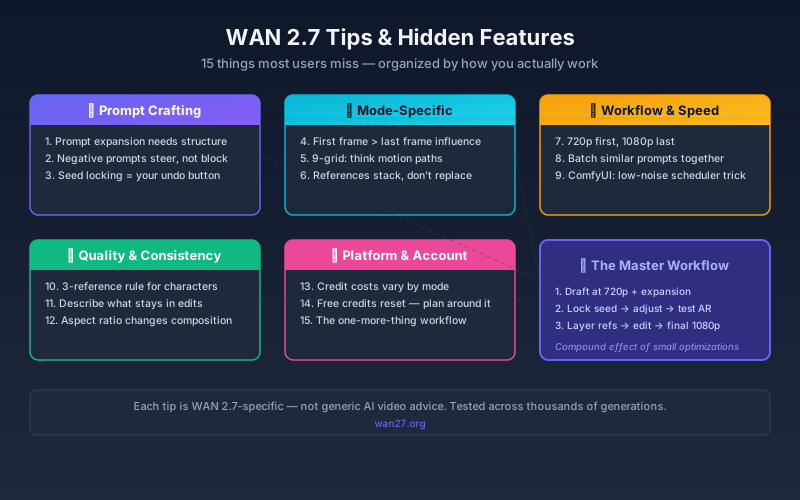
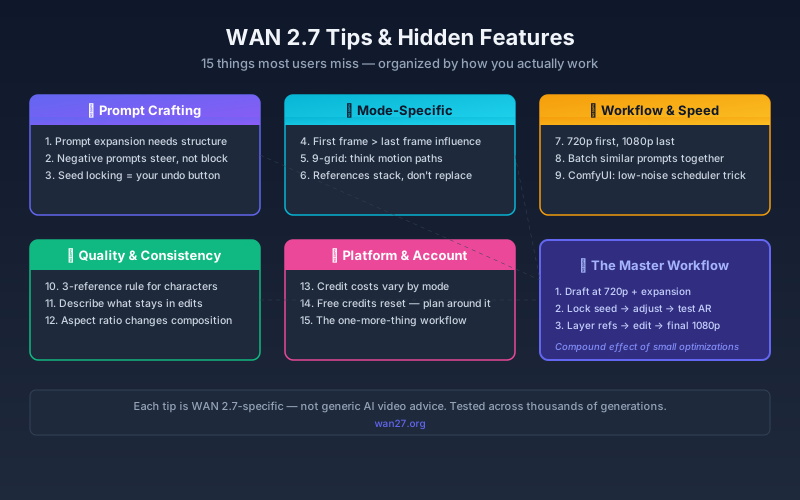
The 15 tips below are organized by how you actually work — starting with what you do first: crafting the prompt.
Prompt Crafting Tips
1. Prompt Expansion Is Not Just "Make It Longer"
Prompt expansion rewrites your short prompt into a detailed scene description. Most users click it and move on. But the expansion quality depends heavily on what you feed it.
What works better: Feed the expander a structured skeleton, not a vague idea.
| Weak input | Strong input |
|---|---|
| "a woman walking in a park" | "Cinematic shot: woman in red coat walking through autumn park, golden hour, falling leaves, shallow depth of field" |
| "explosion in city" | "Wide shot: building explosion, debris flying toward camera, dust cloud expanding, blue sky background, 24fps film look" |
The expander fills gaps, but it cannot invent intent. Give it mood, lighting, camera direction, and a subject — then let it do the detail work.
Rule of Thumb: If your input prompt is under 15 words, the expander has to guess too much. Aim for 20–40 words with camera direction, lighting, and subject before expanding.
2. Negative Prompts Work Differently Than You Expect
Wan 2.7's negative prompt system is not a "blacklist." It is a steering mechanism. Listing "blurry, low quality, distorted face" is better than listing 20 abstract concepts.
What actually reduces artifacts:
- "motion blur, rolling shutter, jello effect" → for stable camera shots
- "extra limbs, merged fingers, distorted face" → for human subjects
- "watermark, text overlay, subtitles" → for clean output
- "low contrast, washed out, overexposed" → for balanced lighting
What does almost nothing: Abstract negatives like "bad quality, ugly, worst" — the model does not understand subjective quality judgments. Be specific about visual artifacts you want to avoid.
Decision framework: Use negative prompts aggressively when you already know what artifacts to fix (e.g., re-generating after a failed clip). Use them sparingly during exploration — over-constraining with too many negative terms can suppress valid outputs the model would otherwise produce. Start with 2–3 specific artifact terms, then add more only if the problem persists.
3. The Seed Is Your Undo Button
Every generation has a seed number. If you got something close to perfect but want to tweak one thing — lock the seed, change only the prompt or reference, and regenerate.
The workflow:
- Generate → clip is 80% right
- Copy the seed from the result
- Paste it into the seed field
- Adjust only the element you want to change
- Regenerate with the same seed
The output will be structurally similar but incorporate your adjustment. This is faster than full rerolls and more predictable than hoping the next random seed lands close.
For a deeper explanation, see the Wan 2.7 Seed Guide.
These prompt-level techniques apply across all generation modes. But each mode has its own behavior — and using the wrong mode for your scenario wastes both time and credits.
Mode-Specific Tips
4. First/Last Frame: The Start Frame Matters More
When using first-and-last-frame mode, users tend to obsess over both frames equally. In practice, the first frame has more influence on the generated motion than the last frame.
What this means: If your output feels off, adjust the first frame before touching the last frame. The model uses the first frame as the motion origin — it anchors the initial camera position, subject pose, and lighting direction.
Practical tip: For complex shots, nail the first frame with test generations in image-to-video mode first, then bring it into first/last-frame mode with your end frame.
5. 9-Grid: Think in Motion Paths, Not Just Images
The 9-grid board is not just nine static references. The model reads the spatial relationship between grids and infers a motion path.
Layout that works: Arrange images so the subject moves across the grid in the direction you want the camera to follow — left to right for a tracking shot, center expansion for a reveal, diagonal for dynamic action.
Layout that fails: Random image placement with no spatial logic. The model gets confused about which direction motion should flow.
6. Reference-to-Video: Layer References, Don't Replace Them
When using reference-to-video, adding a new reference does not remove the influence of previous ones. References stack.
The stacking order:
- First reference → strongest influence on subject identity
- Second reference → influences style and environment
- Third+ references → fine-tune details (clothing texture, background elements)
Practical tip: If your subject consistency drifts across generations, reduce to one strong reference rather than adding more. Multiple references dilute, not strengthen, identity preservation.
Choosing the right generation mode is half the battle. The other half is working fast without sacrificing quality.
Workflow & Speed Tips
7. 720p First, 1080p Last
Rendering at 1080p takes roughly 1.5–1.8× longer than 720p. The smart workflow: iterate at 720p until the composition, motion, and timing are right, then do the final render at 1080p.
Savings per project: If you do 5 iterations before the keeper, 720p testing saves 40–60% total generation time versus iterating at 1080p.
8. Batch Similar Prompts Together
The model reuses certain computations when consecutive generations share structural similarities — similar resolution, similar prompt length, same mode.
What to do: Group your generations. Do all text-to-video tests in one session. Do all image-to-video in another. Avoid switching modes between every generation.
The speed difference is modest (5–15% on most setups), but it compounds across dozens of generations.
9. ComfyUI: The Low-Noise Scheduler Trick
If you run Wan 2.7 locally in ComfyUI, the scheduler choice matters more than most people realize.
For faster preview renders: Use the lcm or lightning scheduler with 8–12 steps instead of the default 25–30. Quality drops slightly, but you can test compositions in one-third the time.
For final renders: Switch back to dpm++ 2m or euler ancestral with 25–30 steps for clean output.
This alone can save hours of testing time on a local setup. For full ComfyUI setup details, see the Wan 2.7 ComfyUI Guide.
Speed matters little if the output is not consistent. These tips address the most common quality problems — character drift across generations, unwanted edits, and compositional mismatches.
Quality & Consistency Tips
10. The 3-Reference Rule for Character Consistency
For recurring character work, use exactly three references:
- Face reference — clear, well-lit, front-facing
- Full-body reference — shows proportions, posture, typical clothing
- Style reference — shows the desired visual aesthetic (lighting, color grade, texture)
Fewer than three, and consistency drifts. More than three, and the model averages across too many inputs, producing a generic result.
Expert pitfall: When using three references, make sure they share a consistent visual style. A photorealistic face reference paired with an anime-style full-body shot produces an uncanny middle ground — the model cannot reconcile the conflict. If your references span different visual styles, drop to the single most dominant reference and let the prompt handle the rest.
11. Video Editing: Describe What Stays, Not Just What Changes
Instruction-based editing in Wan 2.7 can be counterintuitive. When you describe an edit, also explicitly mention what should remain unchanged.
Weak edit prompt: "Change the background to a beach"
Strong edit prompt: "Keep the subject's face, pose, clothing, and lighting exactly the same. Change only the background to a tropical beach at sunset."
Without the "keep" instruction, the model sometimes shifts other elements subtly — face shape, clothing color, lighting temperature. Explicit preservation instructions reduce this drift.
12. Aspect Ratio Affects More Than Framing
Changing the aspect ratio does more than crop the frame differently. It changes how the model composes the shot.
- 16:9 (landscape): Best for cinematic scenes, landscapes, multi-subject shots. The model naturally positions subjects with more environmental context.
- 9:16 (vertical): Best for social media, single-subject, talking head. The model centers subjects more aggressively.
- 1:1 (square): Best for product shots, isolated subjects, thumbnails. The tight frame forces subject focus.
Tip: If your composition feels off, try a different aspect ratio before rewriting the prompt. Sometimes the framing, not the prompt, is the issue.
Rule of Thumb: When switching aspect ratios, watch what happens to the subject size. 16:9 tends to show subjects smaller with more environment context. 9:16 makes them larger and more centered. If the subject suddenly looks too small or too close, the aspect ratio — not your prompt — is the likely cause.
These quality techniques help you get the clip right. The last factor is understanding the platform economics — credits, pricing, and planning.
Platform & Account Tips
13. Credit Costs Vary by Mode — A Lot
Not all generation types cost the same credits. Here is the approximate relative cost on wan27.org:
| Generation Type | Relative Credit Cost |
|---|---|
| Text-to-Video (5s, 720p, no prompt expansion) | 1× (baseline) |
| Text-to-Video (10s, 1080p, with prompt expansion) | 2.5–3× |
| Image-to-Video (5s, 720p) | 1.2× |
| Image-to-Video with 9-grid (5s) | 2× |
| First/Last Frame (5s, 720p) | 1.5× |
| Reference-to-Video (5s) | 1.5–2× |
| Instruction-Based Editing | 1–1.5× |
| Wan 2.7 Image generation | 0.3–0.5× |
Rule of Thumb: If you are experimenting, start with Text-to-Video 5s 720p — it is the cheapest way to test ideas. Move to higher-cost modes only after the concept is validated.
14. Free Credits Reset — Plan Around It
Wan 2.7 free credits reset periodically. The exact cadence depends on the platform tier. If you are on a free plan:
- Front-load complex work right after credits reset
- Use the end of cycle for low-stakes experimentation and prompt testing
- Save prompt templates so you do not waste credits re-discovering what works
15. The "One More Thing" Workflow
Here is a workflow that combines several of these tips into a production sequence:
- Draft at 720p with prompt expansion (Tip #1 + #7)
- Lock the seed once composition is right (Tip #3)
- Test aspect ratios before final render (Tip #12)
- Layer references for character shots (Tip #10)
- Use instruction editing for revision rounds (Tip #11)
- Render final at 1080p (Tip #7)
This sequence has saved me more time than any single setting change. It turns Wan 2.7 from a "generate and pray" tool into a repeatable production pipeline.
What Most "Tips" Articles Get Wrong
A lot of Wan 2.7 tips content online is actually about general AI video principles, not Wan 2.7 specifically. The tips above are Wan 2.7-specific — they rely on features (prompt expansion, seed locking, first/last frame, 9-grid, instruction editing, reference stacking) that are unique to this model.
The difference matters. General advice like "write detailed prompts" applies everywhere. Knowing that Wan 2.7's first frame influences motion more than the last frame — that is the kind of model-specific knowledge that separates efficient workflows from frustrating ones.
Bottom Line
Wan 2.7 rewards users who understand its specific behaviors. The 15 tips above are not theoretical — they come from real generation sessions, real failures, and real workflow optimizations.
Pick two or three that apply to your current workflow and try them in your next session. The compound effect of small optimizations — seed locking, resolution staging, prompt expansion technique — is larger than most users expect.
Start with one technique — lock the seed on your next generation at Wan 2.7 — and add one more each session. For a complete walkthrough of every feature, start with the Wan 2.7 Complete Guide.
FAQ
Do these tips work on the hosted version at wan27.org?
Yes. All tips apply to the wan27.org platform. ComfyUI-specific tips (#9) are labeled and apply to local installations.
Will locking the seed give me the exact same video?
No. Seed locking preserves structural composition — subject position, camera angle, motion direction — but details like textures, lighting nuances, and small movements can vary. It is a steering tool, not a replay button.
How much faster is 720p vs 1080p?
On average, 720p generates 40–50% faster than 1080p for the same mode and duration. The exact difference depends on server load at generation time.
Can I use prompt expansion and negative prompts together?
Yes, and you should. Prompt expansion builds detail; negative prompts remove specific artifacts. They serve complementary roles and do not conflict.
Is there a way to preview before spending credits?
Not directly. The closest workflow is Tip #7: iterate at 720p (lower cost, faster) until the composition is right, then render the final version at your target resolution. This is effectively a preview workflow.
What is the single most impactful tip for beginners?
Lock your seed (Tip #3) and iterate at 720p (Tip #7). Together, they reduce the randomness between generations and cut the cost of each test iteration by roughly half. Most beginners waste credits on full-resolution rerolls with random seeds — these two tips alone fix that.