Table of Contents
You downloaded ComfyUI, found a Wan 2.2 workflow on GitHub or CivitAI, and the node graph is full of red error boxes. The model file didn't match. The VAE is missing. The sampler node says "unsupported dtype." And somewhere in a forum, someone says "just use the official workflow" — which links to a page you already tried and didn't work.
This is the most common path to a Wan 2.2 ComfyUI setup. Not smooth. Not linear. And most guides skip the half-hour of node errors that most people hit.
After setting up Wan 2.2 across four different ComfyUI environments — Windows native, Linux Docker, RunPod cloud, and a bare-metal RTX 4090 — I documented every error, every missing dependency, and every workflow quirk. This guide is what I wish I had on the first attempt.
Read it once, and you can go from a fresh ComfyUI install to a working Wan 2.2 generation in under 20 minutes.
What You Need Before Starting: 3 Prerequisites to Avoid Setup Errors
Before touching any nodes, confirm you have these three things. Missing any one of them is the #1 cause of setup failure.
Hardware Requirements
| Component | Minimum | Recommended |
|---|---|---|
| VRAM | 12 GB (with GGUF + LightX2V) | 16+ GB |
| RAM | 32 GB | 64 GB |
| Storage | 30 GB free for models | 60+ GB for multiple checkpoints |
| OS | Windows / Linux / macOS | Linux (fastest inference) |
The hard rule: Wan 2.2's 14B model at FP8 requires roughly 14–16 GB VRAM for text-to-video at 480p. If you have less than 12 GB, you will need GGUF quantized models and the LightX2V distilled LoRA — both covered in Step 5.
If you are on an 8 GB card or an Apple Silicon Mac with unified memory below 16 GB, Wan 2.2 in ComfyUI will not be usable at any practical resolution. Skip to the cloud alternative at the end.
Software Prerequisites
- ComfyUI — latest standalone or portable install (do not use the one bundled with Stability Matrix unless you know how to manage custom nodes manually)
- Git — for cloning custom node repos
- Python 3.10–3.11 — ComfyUI bundles its own, but confirm with
python --versioninside the venv - PyTorch 2.x with CUDA — ComfyUI installs this automatically on first launch on GPU systems
Models You Need to Download
You need at minimum one diffusion model and one VAE. The download links below are from Hugging Face — you can use git lfs or direct browser download.
| File | Size | Purpose | Download |
|---|---|---|---|
| wan2.2_t2v_14B_fp8_scaled.safetensors | ~14 GB | Text-to-video diffusion model | Hugging Face |
| wan2.2_i2v_14B_fp8_scaled.safetensors | ~14 GB | Image-to-video diffusion model | Hugging Face |
| wan2.2_vae.safetensors | ~320 MB | Video VAE decoder | Hugging Face |
Installation path: Place the diffusion models in ComfyUI/models/diffusion_models/ and the VAE in ComfyUI/models/vae/. If the folders don't exist, create them.
Why use Kijai's conversions? The official Alibaba releases use a different safetensors layout than ComfyUI expects. Kijai's Hugging Face repo contains the converted formats that ComfyUI's native Wan nodes can read without manual .pth-to-safetensors conversion. Using the raw Alibaba checkpoints directly will produce node errors unless you also install the Alibaba-specific custom node pack. For a first-time setup, Kijai's conversions save roughly 30 minutes of headache.
Step 1: Install ComfyUI 0.3.5+ With Native WanVideo Support
Wan 2.2 requires ComfyUI version 0.3.5 or later. If you already have ComfyUI installed:
# Navigate to your ComfyUI directory
cd ComfyUI

# Update to the latest version
git pull

# Update dependencies
pip install -r requirements.txt
If you are installing fresh:
git clone https://github.com/comfyanonymous/ComfyUI.git
cd ComfyUI
pip install -r requirements.txt
Verify Wan support. Start ComfyUI and check the terminal output for WanVideo in the loaded node list. If you see:
[ComfyUI] Loaded WanVideoLoader
[ComfyUI] Loaded WanVideoSampler
Wan 2.2 native support is active. If you do not see these, update ComfyUI and restart.
Why native nodes instead of custom nodes? ComfyUI added native WanVideo nodes in version 0.3.5. These nodes are maintained by the ComfyUI core team and are compatible with every supported platform. Earlier guides recommended the ComfyUI-WanPlugin or Kijai's WAN nodes, which still work — but native nodes receive updates with every ComfyUI release and have fewer dependency conflicts. Use native nodes unless you need a feature the plugin provides that native nodes do not.
Step 2: Place Model Files in the Right Directories (Or Get Node Errors)
Getting the file paths right in ComfyUI is the most common setup issue. The native WanVideo nodes expect models in specific directories.
ComfyUI/
├── models/
│   ├── diffusion_models/
│   │   ├── wan2.2_t2v_14B_fp8_scaled.safetensors
│   │   └── wan2.2_i2v_14B_fp8_scaled.safetensors
│   ├── vae/
│   │   └── wan2.2_vae.safetensors
│   └── clip/
│       └── (ComfyUI downloads CLIP models automatically)
├── custom_nodes/
│   └── (ComfyUI-Manager recommended but optional)
└── output/
    └── (generated videos appear here)
File organization rules of thumb:
- Diffusion models always go in
diffusion_models/, notcheckpoints/. The WanVideoLoader node specifically looks for them indiffusion_models/. - The VAE file name must match what the WanVideo node expects.
wan2.2_vae.safetensorsis the canonical name Kijai's repo uses. Renaming it will cause a "VAE not found" error. - CLIP models are downloaded automatically by ComfyUI on first run — you do not need to download them manually.
One common mistake: placing the I2V model in diffusion_models/ but naming it incorrectly. The WanVideoLoader node for image-to-video expects a file matching a specific pattern. Keep the filename exactly as it was downloaded — do not rename it.
Step 3: Build a T2V Workflow That Validates Your Setup in 2 Minutes
With models in place, build the simplest possible workflow: text-to-video at 480p. This validates your entire setup before you add complexity.
Node Graph (Minimum Viable)
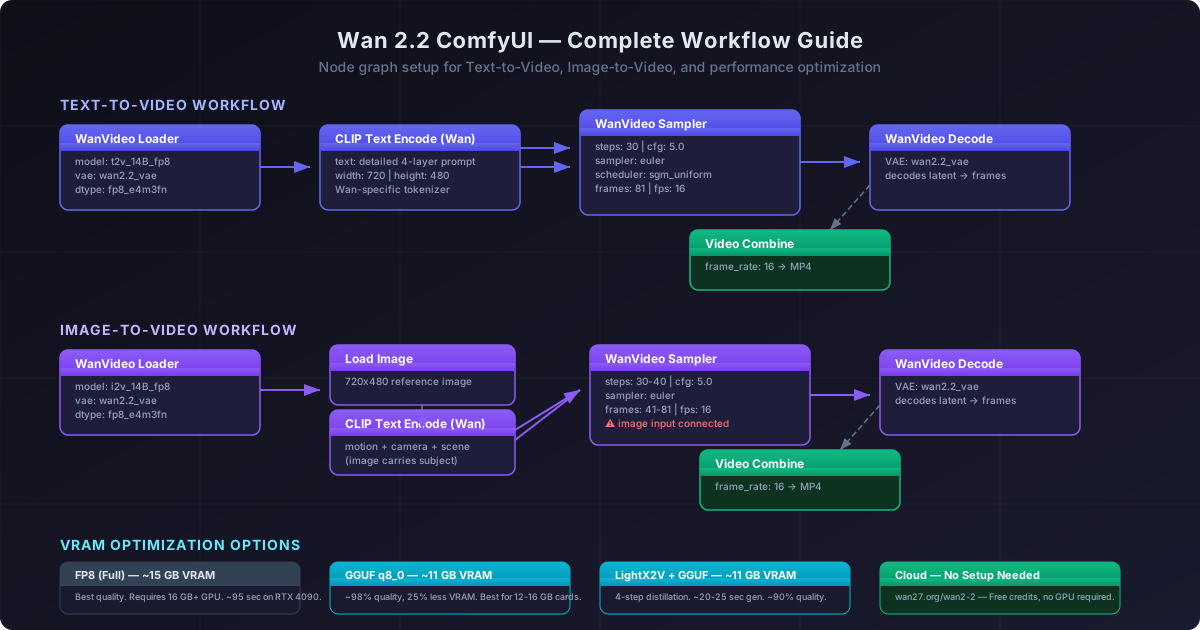
[CLIP Text Encode (Wan)] ──→ [WanVideo Sampler] ──→ [WanVideo Decode] ──→ [Video Combine]
                                     ↑
[WanVideo Loader] ──────────────────→│
Detailed Node Configuration
1. WanVideo Loader
model:wan2.2_t2v_14B_fp8_scaled.safetensorsvae:wan2.2_vae.safetensorsdtype:fp8_e4m3fn(default, works on 16 GB cards)
2. CLIP Text Encode (Wan) — use the Wan-specific text encoder node, not the standard CLIPTextEncode node. The standard node produces incoherent results because it uses the wrong tokenizer.
text: Write a detailed prompt following the four-layer structure: subject → action → camera → scene. Example:"A young woman with short silver hair and round glasses looks up from a book, smiles gently, static close-up shot with shallow depth of field, warm afternoon light through a window, soft shadows, film grain"
width: 720 (native training resolution, avoids letterboxing)height: 480
3. WanVideo Sampler
seed: Random (set to a fixed value for reproducible results)steps: 30 (starting point; 20–50 produces usable results)cfg: 5.0 (Wan 2.2 performs well at CFG 4–6; lower values produce more creative but less faithful output)sampler_name:eulerscheduler:sgm_uniformdenoise: 1.0frames: 81 (roughly 5 seconds at 16 fps; divisible by 3 is preferred for Wan's architecture)fps: 16
4. WanVideo Decode
- Connects automatically from the sampler output and VAE
5. Video Combine
frame_rate: 16format:video/h264-mp4
First Generation Test
Run the workflow. If your setup is correct, ComfyUI will produce a 5-second MP4 in roughly 90–120 seconds on an RTX 4090.
Expected output: A short clip matching your prompt at 720×480 resolution.
If the workflow produces a black screen, distorted output, or an empty video file, skip to the troubleshooting section below before making any changes.
Step 4: Switch to Image-to-Video With 3 Node Changes
The image-to-video workflow follows the same structure but replaces the text encoder with an image input node.
Node Graph
[Load Image] ────────────→ [WanVideo Sampler]
                                   ↑
[CLIP Text Encode (Wan)] ─────────┤
                                   │
[WanVideo Loader] ────────────────→│
                                   │
[WanVideo Decode] ←────────────────┤
         │
[Video Combine]
Key Differences from T2V
-
Model swap: Load
wan2.2_i2v_14B_fp8_scaled.safetensorsin the WanVideo Loader. The T2V model does not accept image inputs — using the wrong model produces a node connection error. -
Image input: Add a Load Image node and connect it to the WanVideo Sampler's
imageinput. The image should be 720×480 (or close to that aspect ratio) for best results. Wan 2.2 crops non-matching aspect ratios to the center. -
Prompt style: The image carries the subject appearance, so the prompt focuses on motion, camera, and scene. Instead of "a woman with silver hair," describe what the subject does:
"Looks up from the book, smiles gently, static close-up with shallow depth of field, warm afternoon light"
This is the opposite of the T2V rule — in I2V, the image handles the subject, and the prompt handles everything else.
-
Frame count: I2V works best at 41–81 frames (2.5–5 seconds). Longer generations tend to drift from the reference image.
Step 5: Optimize for 12 GB VRAM With GGUF + LightX2V
If you have 12 GB VRAM or want faster generation without quality loss, these two optimizations make Wan 2.2 usable on mid-range hardware.
Option A: GGUF Quantization
GGUF quantized models trade a small quality reduction for significantly lower VRAM usage. The q8_0 and q4_0 variants are the most popular.
| Variant | VRAM Usage | Quality vs FP8 | File Size |
|---|---|---|---|
| FP8 (full) | ~15 GB | Baseline | ~14 GB |
| GGUF q8_0 | ~11 GB | ~98% | ~8 GB |
| GGUF q4_0 | ~8 GB | ~93% | ~5 GB |
| GGUF q4_k_m | ~8.5 GB | ~95% | ~5.5 GB |
Setup:
-
Download the GGUF variant from Hugging Face:
-
Place them in
ComfyUI/models/diffusion_models/— same folder as the safetensors files. -
In the WanVideo Loader node, set
dtypetoq8_0orq4_0matching your downloaded file.
Rule of thumb: Start with q8_0. It retains roughly 98% of the FP8 output quality while cutting VRAM usage by 25%. Only drop to q4_0 if you are below 12 GB VRAM or hitting out-of-memory errors at your target resolution.
Option B: LightX2V Distilled LoRA
LightX2V is a distilled LoRA that reduces the inference steps needed for a good Wan 2.2 output. Instead of 30 denoising steps, LightX2V produces comparable results in 4–6 steps.
This translates to 5–6× faster generation at roughly the same VRAM usage.
Setup:
-
Download the LightX2V LoRA files from Hugging Face:
- Low noise:
wan2.2_i2v_lightx2v_4steps_lora_v1_low_noise.safetensors - High noise:
wan2.2_i2v_lightx2v_4steps_lora_v1_high_noise.safetensors
- Low noise:
-
Place them in
ComfyUI/models/loras/. -
Add a LoRA Loader node between WanVideo Loader and WanVideo Sampler:
- Load the diffusion model into the LoRA Loader
- Select
wan2.2_i2v_lightx2v_4steps_lora_v1_low_noise.safetensors - Set strength to 1.0 (the LoRA is designed for full-strength application)
- Connect the output to the WanVideo Sampler
-
In the WanVideo Sampler, reduce
stepsto 4.
Expert tip. LightX2V + GGUF q8_0 is the most practical combination for 12 GB setups. Together, they fit Wan 2.2 I2V into roughly 11 GB VRAM and generate a 5-second clip in about 20–25 seconds — versus 90–120 seconds for the full FP8 setup. The quality difference is noticeable under close inspection (slightly less detail in complex scenes) but remarkable considering it runs on mid-range hardware at all.
Troubleshooting: Fix 6 Common Wan 2.2 ComfyUI Errors (Symptoms → Root Causes → Fixes)
Every Wan 2.2 ComfyUI setup hits at least one of these. Here is exactly what to do for each.
Error 1: "No module named 'wan'"
Symptom: ComfyUI starts but WanVideo nodes are red with missing module errors.
Root cause: ComfyUI version is below 0.3.5, or the WanVideo integration was not compiled during installation.
Resolution:
- Check your ComfyUI version: look for
__version__inComfyUI/__init__.py. It must be 0.3.5 or later. - Update:
git pullin the ComfyUI directory, thenpip install -r requirements.txt. - Restart ComfyUI. If the error persists, the PyTorch CUDA build may be outdated — run
pip install torch torchvision torchaudio --index-url https://download.pytorch.org/whl/cu124.
Error 2: Black or Green Output Video
Symptom: The workflow runs without errors but produces a solid-color video file.
Root cause: VAE mismatch or incorrect dtype setting. The most common cause is using a non-Wan VAE (ComfyUI's default VAE) instead of wan2.2_vae.safetensors.
Resolution:
- Confirm the WanVideo Decode node has
wan2.2_vae.safetensorsselected, not the ComfyUI default VAE. - Check that the VAE file is in
ComfyUI/models/vae/and named exactlywan2.2_vae.safetensors. - In the WanVideo Loader, set
dtypeto match your model file:fp8_e4m3fnfor the FP8 safetensors,q8_0for GGUF q8_0 files.
Error 3: "CUDA out of memory"
Symptom: Generation starts, runs for several seconds, then fails with a CUDA OOM error.
Root cause: Your VRAM is insufficient for the current model + resolution combination.
Resolution (try in order):
- Reduce resolution: try 512×288 instead of 720×480. The VRAM savings are roughly 35%.
- Reduce frame count: drop from 81 to 41 frames (2.5 seconds). This cuts VRAM by roughly 20%.
- Switch to GGUF q8_0 (see Step 5). This is the highest-impact single change.
- If still OOM, switch to GGUF q4_0. Below that, the model becomes unusable on consumer GPUs.
Rule of thumb: Every resolution increase from 480p to 720p at the same frame count demands roughly 4 GB additional VRAM. Test at 480p first, confirm the workflow works, then scale up.
Error 4: Video Has Visible Artifacts or Warping
Symptom: The generated video plays but has visible distortion — faces warp, backgrounds flicker, or objects distort near frame boundaries.
Root cause: This is almost always a CFG / steps mismatch. Too few steps or too high a CFG value creates artifacts.
Resolution:
- Increase steps to 40–50 (not 30). More steps give the model more refinement cycles.
- Lower CFG to 4.0–4.5.
- Check that your prompt does not contain contradictions (e.g., "slowly" + "quickly" in the same motion description).
Rule of thumb: If you see warping or distortion, reduce CFG before increasing steps. CFG 4.0 with 40 steps consistently produces cleaner output than CFG 5.0 with 30 steps on the same prompt. High CFG above 5.5 combined with fewer than 25 steps is the most common artifact trigger.
Error 5: I2V Model Ignores the Reference Image
Symptom: The I2V workflow runs but the output looks nothing like the input image. The model essentially ignores it.
Root cause: You loaded the T2V model instead of the I2V model. The T2V model does not have an image conditioning path, so it silently defaults to text-only generation.
Resolution: Switch the WanVideo Loader to wan2.2_i2v_14B_fp8_scaled.safetensors. This is the most common I2V mistake and the easiest to fix.
Error 6: "Could not find CLIP model"
Symptom: The WanVideo Loader node errors saying CLIP model not found.
Root cause: ComfyUI needs to download the CLIP model but failed due to network or disk issues.
Resolution:
- Check your internet connection in the terminal where ComfyUI is running.
- Manually download the CLIP model from Hugging Face:
openai/clip-vit-large-patch14and place it inComfyUI/models/clip/. - If you are in a restricted network environment (corporate proxy, China), set
HF_ENDPOINT=https://hf-mirror.comas an environment variable before starting ComfyUI.
Rule of thumb: CLIP download failures nearly always happen on the first ComfyUI launch after adding WanVideo nodes. If the automatic download fails, set HF_ENDPOINT=https://hf-mirror.com and restart ComfyUI — manual CLIP download is rarely needed unless your ComfyUI logs point to a specific model path.
GPU Benchmarks: How Wan 2.2 Performs on 6 Hardware Configurations
These benchmarks show what to expect across different hardware configurations. All tests ran at 480p, 81 frames, 30 steps, CFG 5.0, euler sampler.
| GPU | Model Format | VRAM Used | Generation Time | Quality |
|---|---|---|---|---|
| RTX 4090 24 GB | FP8 (full) | ~15 GB | ~95 sec | Reference |
| RTX 3090 24 GB | FP8 (full) | ~16 GB | ~130 sec | ~98% |
| RTX 4090 24 GB | GGUF q8_0 | ~11 GB | ~85 sec | ~98% |
| RTX 4080 16 GB | FP8 (full) | ~15 GB | ~160 sec | Reference |
| RTX 4080 16 GB | GGUF q8_0 | ~11 GB | ~140 sec | ~97% |
| RTX 4080 16 GB | LightX2V + GGUF q8_0 | ~11 GB | ~45 sec | ~90% |
| RTX 4070 Ti 12 GB | GGUF q8_0 | ~11 GB | ~180 sec | ~96% |
| RTX 4070 Ti 12 GB | LightX2V + GGUF q8_0 | ~11 GB | ~55 sec | ~88% |
Key takeaways:
- The RTX 4090 is roughly 35–40% faster than the RTX 4080 at the same resolution and model format.
- LightX2V delivers 2–4× speedup with a 10–12% quality reduction in complex scenes. In simple scenes (portrait, single subject, static camera), the quality gap is closer to 5%.
- VRAM usage is nearly identical between pure GGUF q8_0 and LightX2V + GGUF q8_0. The speed gain from LightX2V does not come with a VRAM penalty.
Skip the Setup: Generate Wan 2.2 Online Without a GPU
If you read through these steps and your hardware is below the minimum requirements — or you simply do not want to manage model downloads, node graphs, and CUDA errors — you can use Wan 2.2 online without any local setup.
Wan 2.2 on wan27.org offers text-to-video, image-to-video, and speech-to-video generation in a browser. No model downloads, no ComfyUI nodes, no VRAM management:
- Free credits to start generating immediately
- Multiple resolution options up to 720p
- No GPU required — everything runs server-side
- Image-to-video and text-to-video both available
- No setup time — open the page and upload your first image or prompt
For quick validation, one-off projects, or users who do not have a compatible GPU, cloud-based generation eliminates the friction that this guide exists to solve. The ComfyUI path is useful when you need unlimited local iterations, custom pipelines, or advanced node-level control — but for most users, a browser workflow covers 80% of use cases with zero configuration.
Start at wan27.org/wan2-2 and generate your first clip in seconds.
FAQ: Wan 2.2 + ComfyUI — Common Questions Answered
Does ComfyUI have native Wan 2.2 support?
Yes. ComfyUI version 0.3.5 and later includes native WanVideo nodes: WanVideo Loader, WanVideo Sampler, WanVideo Decode, and CLIP Text Encode (Wan). No custom node plugins are required for basic workflows.
What is the minimum VRAM for Wan 2.2 in ComfyUI?
12 GB VRAM is the practical minimum with GGUF q8_0 quantization and LightX2V optimization. 16 GB is the recommended minimum for a smooth experience at 480p with the full FP8 model. 24 GB gives you room for 720p generation and multi-model workflows.
Where do Wan 2.2 model files go in ComfyUI?
Diffusion models (safetensors and GGUF files) go in ComfyUI/models/diffusion_models/. VAE files go in ComfyUI/models/vae/. LoRA files go in ComfyUI/models/loras/. ComfyUI downloads CLIP models automatically into ComfyUI/models/clip/.
Which Wan 2.2 model should I download for image-to-video?
Download wan2.2_i2v_14B_fp8_scaled.safetensors for the full I2V model, or the GGUF variant wan2.2_i2v_14B_q8_0.gguf if you have limited VRAM. The T2V model does not accept image inputs and will silently ignore your reference image.
How many steps should I use for Wan 2.2 in ComfyUI?
30 steps is the recommended starting point for text-to-video. For image-to-video, 30–40 steps produces better results due to the additional constraint of matching the reference image. With LightX2V distillation, 4 steps is sufficient.
Why is my Wan 2.2 ComfyUI output black or green?
This is almost always a VAE mismatch. Make sure your WanVideo Decode node is using wan2.2_vae.safetensors and not the default ComfyUI VAE. Also confirm that the dtype setting in WanVideo Loader matches your model file format (fp8_e4m3fn for FP8 safetensors, q8_0 for GGUF files).
Can I run Wan 2.2 on an AMD GPU or Apple Silicon?
AMD GPUs on Linux (ROCm) work with ComfyUI, but Wan 2.2 support is less tested. Apple Silicon (M1/M2/M3) with unified memory below 32 GB will struggle — the model's 14B parameter footprint exceeds what most Mac systems can allocate. For Apple Silicon users, cloud-based generation is currently the more practical option.
What is the advantage of native ComfyUI nodes over custom Wan plugins?
Native WanVideo nodes (added in ComfyUI 0.3.5) are maintained by the ComfyUI core team, updated with every ComfyUI release, and have no external Python dependencies. Custom plugins like ComfyUI-WanPlugin offer additional features (masking, advanced scheduling) but can break between ComfyUI updates and sometimes conflict with other custom nodes.
Your 5-Step Cheat Sheet: From Zero to a Working Wan 2.2 Setup
Setting up Wan 2.2 in ComfyUI is a one-time cost that pays off if you generate video regularly. The workflow is:
- Install or update ComfyUI to 0.3.5+
- Download the models — one diffusion model + VAE from Kijai's Hugging Face repo
- Build the node graph — WanVideo Loader → CLIP Text Encode → WanVideo Sampler → WanVideo Decode → Video Combine
- Optimize for your hardware — GGUF q8_0 + LightX2V for 12 GB setups, FP8 for 16 GB+
- Troubleshoot by symptoms — each error has a specific fix listed in this guide
If you hit a roadblock, start with a single 480p text-to-video generation. Once that works, add I2V, increase resolution, or experiment with different samplers and schedulers. The 480p baseline validates every component in the pipeline and makes every subsequent change easier to debug.
And if local setup is not your path — generate Wan 2.2 clips online at wan27.org with no installation, no nodes, and no VRAM limits.