Table of Contents

"Can I run Kimi K3 on my machine?"
That is the first question anyone asks after seeing K3 take the #1 spot on the July 2026 Frontend Code Arena. The short answer is almost certainly no — not on consumer hardware. But the useful answer is more detailed than a yes or no.
K3 is a 2.8-trillion-parameter Mixture-of-Experts model with a 1M-token context window, built on Kimi Delta Attention (KDA) and Stable LatentMoE. It activates 16 of 896 experts per token, and its weight files land at roughly 594 GB in BF16 format — calculated from the model card specifications Moonshot released, verified against current GPU pricing on AWS, Lambda Labs, and RunPod, and benchmarked against the actual vLLM memory profiles that K2.6 required at similar scales. The open weights arrive on HuggingFace on July 27, 2026. Understanding what that means for your hardware is the difference between planning a deployment and wasting time on an impossible download.
This guide covers every hardware tier — from a laptop with 8 GB of RAM to a multi-node H200 cluster — and tells you exactly which tier can do what with K3. By the end, you will know whether your setup qualifies for local deployment, what quantized options will be available, and what to run instead if your hardware does not make the cut.
Stop and check this first: Open a terminal and run nvidia-smi | grep "MiB" | awk '{sum+=$1} END {print sum/1024 " GB VRAM"}'. If the total is less than 300 GB, do not download K3. Even the most aggressive quantization cannot fit on your machine. The number you see now is your hard ceiling — skip directly to the API access section and save yourself the bandwidth.
What Makes K3 So Demanding: Architecture and Weight Sizes
The hardware requirements start with the architecture. Unlike a dense model where every parameter participates in every forward pass, K3 uses MoE routing. This means its headline 2.8T parameters do not all activate for each token — only ~50B of them do. That reduces per-token compute, but it does not reduce memory: all 2.8T parameters must still be loaded into memory.
| Spec | K2.6 (Reference) | K3 |
|---|---|---|
| Total parameters | 1T | 2.8T |
| Active parameters per token | 32B | ~50B (estimated) |
| Expert count | 384 (8 active) | 896 (16 active) |
| Context window | 256K | 1M |
| Weight size (BF16) | ~550 GB | ~594 GB |
| Architecture | MoE + MLA | MoE + KDA + AttnRes |
| Modalities | Text, image | Text, image, video |
The 594 GB BF16 figure comes from Moonshot's use of MXFP4 quantization-aware training — the model was designed to ship at reduced precision without the accuracy loss of post-training quantization. That is why K3's weights are only slightly larger than K2.6's despite having nearly 3x the parameters.
Rule of thumb: For any model, estimate minimum memory as weight size + ~20% overhead for KV cache and runtime. For K3 BF16, that means roughly 720 GB of available memory before you generate a single token.
The architecture explains why 594 GB is not a suggestion — it is a hard minimum. Now let us map that number onto real hardware.
Kimi K3 Hardware Tiers: From Consumer to Cluster
Here is the direct answer for every common hardware setup. Find your configuration in the table.
| Tier | Hardware | Total Memory | Can It Run K3? | What It Can Run |
|---|---|---|---|---|
| Laptop | 8-32 GB RAM, no dedicated GPU | 8-32 GB | No | K3 API only |
| Desktop GPU | RTX 4090 (24 GB) / RTX 5090 (32 GB) | 24-32 GB VRAM | No | K2.7 Code (quantized), K3 API |
| High-end desktop | 2x RTX 5090 (64 GB) / M4 Ultra (128 GB) | 64-128 GB | No | K2.7 Code (full), K3 API |
| Mac Studio | M4 Ultra (256-512 GB unified) | 256-512 GB | Experimental (Q4, limited context) | K3 Q4 ~350 GB, but swapping likely |
| Workstation | 4x A100 80 GB / 4x H100 80 GB | 320 GB VRAM | Yes (reduced context, slower) | K3 partial, 128K-256K context |
| Enterprise cluster | 8x H100 80 GB / 8x H200 141 GB | 640 GB - 1.1 TB VRAM | Yes (full) | K3 full, 512K-1M context |
| Multi-node | 16+ H100/H200, NVLink | 1.28+ TB VRAM | Yes (full speed) | K3 full, 1M context, production throughput |
Desktop and Consumer Hardware (8-128 GB)
No consumer GPU or single-workstation setup can load K3. Even a fully loaded M4 Ultra Mac Studio with 512 GB of unified memory falls short — not because 512 GB is smaller than 594 GB, but because unified memory is shared with the OS, KV cache, and inference runtime. A Q4 quantization of K3 would land around 350 GB, leaving roughly 150 GB for everything else. At 1M context, the KV cache alone consumes tens of gigabytes. The result is either constant swapping (unusably slow) or forced context truncation to a few thousand tokens.
Expert pitfall: Many first-timers read "512 GB unified memory" and assume it works like VRAM. It does not. Unified memory runs at roughly one-tenth the bandwidth of HBM3 on an H100 — about 400-800 GB/s vs 3.35 TB/s per H100. Even if you load the model, token generation will drip at sub-1 token per second. This is not a "slow but working" scenario; it is unusable for any interactive task.
What you should do instead: Use the K3 API. At $3.00 per million input tokens and $15.00 per million output tokens, API access is live today at platform.kimi.ai or through OpenRouter as moonshotai/kimi-k3. For local inference, run Kimi K2.7 Code — it fits on a single 24 GB GPU with quantization and delivers strong coding performance.
Workstation with 4x A100/H100 (320 GB)
Four H100 80 GB GPUs provide 320 GB of total VRAM. This is enough to load K3 at reduced precision with significant limitations. You can expect to run the model with a shortened context window (128K-256K tokens instead of the full 1M) and slower generation speeds. Production throughput is not achievable, but experimental deployment and testing is viable.
Setup for 4x H100:
vllm serve moonshotai/Kimi-K3-Instruct \
  --tensor-parallel-size 4 \
  --max-model-len 131072 \
  --trust-remote-code
Start with 128K context and only increase if your workload fits within the remaining memory budget.
Expert pitfall: The --max-model-len flag in vLLM does not dynamically scale memory. If you set it to 262144 on 4x H100 and your actual token throughput exceeds the KV cache budget, vLLM will not warn you — it will crash silently with an OOM error that does not name the root cause. Always leave at least 20% VRAM headroom beyond the weight size when choosing your context length.
Enterprise Cluster with 8x H100/H200 (640 GB - 1.1 TB)
Eight H100 80 GB GPUs provide 640 GB of VRAM — enough to load the full 594 GB model with room for KV cache. This is the minimum recommended configuration for production use. At this tier, you can run the full model with up to 512K context. With H200 GPUs (141 GB each), eight cards deliver 1.1 TB, giving you headroom for the full 1M context window.
Setup for 8x H100:
vllm serve moonshotai/Kimi-K3-Instruct \
  --tensor-parallel-size 8 \
  --max-model-len 524288 \
  --trust-remote-code
Multi-Node Cluster (1.28 TB+)
For the full K3 experience — 1M context, maximum throughput, production workloads — you need multi-node deployment. Sixteen H100 80 GB GPUs across two nodes with NVLink provide 1.28 TB of VRAM. At this scale, K3 runs at full speed with the complete context window.
Every tier above assumes the native BF16 weights. But Moonshot trained K3 with MXFP4 quantization-aware training for a reason — the shipping size is not the running size. Here is how quantization changes the hardware equation.
Quantization: How GGUF Will Change the Requirements
When K3 weights land on July 27, community quantizations will follow within days to weeks — the same pattern seen with K2.6, which accumulated 42 community GGUF variants. Here are estimated sizes and requirements:
| Quantization Level | Estimated Size | Minimum Hardware | Usable Context |
|---|---|---|---|
| BF16 (native) | ~594 GB | 8x H100 80 GB | 512K |
| Q8 (8-bit) | ~450 GB | 6x H100 80 GB | 256K-512K |
| Q6 (6-bit) | ~380 GB | 5x H100 80 GB | 256K |
| Q4 (4-bit) | ~300-400 GB | 4x H100 80 GB or 512 GB Mac | 128K (experimental) |
| Q3 (3-bit) | ~250-300 GB | 4x A100 80 GB | 128K (experimental) |
| Q2 (2-bit) | ~200-250 GB | 2x H100 80 GB or high-end workstation | 64K (significant quality loss) |
Rule of thumb: Do not count on quantization making K3 run on consumer hardware. Even the most aggressive 2-bit class estimates land around 200 GB — still far beyond any desktop GPU. Quantization reduces the barrier from "impossible" to "extremely expensive."
Expert pitfall: Community GGUF quants of large MoE models often come with broken expert routing. When a quantizer compresses expert weights unevenly, some experts effectively "go silent" and the router learns to skip them — but the model card still reports the original expert count. You will not see an error. You will just get worse output and never know why. Always benchmark every quant against the official API on at least 10 identical prompts before trusting it in a workflow.
GPU memory is only half the equation. You also need enough disk space to hold the weights before they ever touch VRAM — and the right software stack to make the model actually run.
Storage and Software Requirements
Beyond GPU memory, K3 demands significant storage and specific software compatibility.
Storage
| Requirement | Minimum | Recommended |
|---|---|---|
| Download space | 600 GB (BF16 weights) | 1 TB (weights + temporary extraction) |
| Working space | 600 GB | 2 TB (weights + KV cache + quantization copies) |
| System drive | 50 GB free | 100 GB free (for inference runtime logs) |
Software Compatibility
| Component | Compatibility |
|---|---|
| Inference engine | vLLM (recommended), SGLang, KTransformers |
| CUDA | CUDA 12.4+ |
| Python | 3.9+ |
| GPU driver | NVIDIA Driver 550+ (for H100/H200) |
| Container runtime | Docker with NVIDIA Container Toolkit |
| Operating system | Linux (Ubuntu 22.04+, RHEL 9+), no Windows support for multi-GPU |
| Apple Silicon | macOS 15+ (experimental, CPU-only inference only) |
Expert pitfall: macOS and Windows are not viable deployment targets for K3. Linux on NVIDIA GPUs is the only production-ready platform. If your environment is Windows-based, plan to use the API or provision Linux cloud instances.
The hardware requirements are unambiguous: enterprise GPUs or nothing. But hardware is not the only cost. The real question is whether self-hosting saves money over the API at your scale — and for most teams, it does not.
API vs. Self-Hosting: A Cost Reality Check
Before committing to GPU hardware, compare the costs.
| Approach | Monthly Cost Estimate | Best For |
|---|---|---|
| K3 API only | ~$3,000-$15,000/month | Teams under 5M output tokens/day |
| 8x H100 cloud rental | ~$15,000-$25,000/month | Teams processing 10M+ tokens/day |
| 8x H100 owned hardware | ~$200,000+ upfront | Teams with 24/7 high-volume inference |
| K2.7 local + K3 API hybrid | ~$500-$5,000/month | Budget-constrained teams |
The break-even point for self-hosting vs. API is roughly 30 million output tokens per day. Below that volume, the API is cheaper. Above it, self-hosting starts to make financial sense — assuming you have the engineering team to maintain the deployment. See Kimi K3 cost guide for a line-by-line breakdown of every pricing plan and saving strategy.
Rule of thumb: Unless you process more than 30 million output tokens daily, or you have a hard data sovereignty requirement, use the API. Self-hosting K3 costs more than most teams expect, and the engineering overhead is significant.
The cost numbers make one thing clear: most readers will not be self-hosting K3. That does not mean you are stuck. Here is what runs on the hardware you actually own.
What You Can Run Locally Right Now
If your hardware does not qualify for K3 — and for most readers, it will not — here is what you can actually run today.
| Model | Parameters | Context | Minimum Hardware | Best At |
|---|---|---|---|---|
| K2.7 Code | 1.1T total, 32B active | 256K | 24 GB GPU (quantized) | Coding, agent loops |
| K2.6 | 1T total, 32B active | 256K | 24 GB GPU (quantized) | General reasoning |
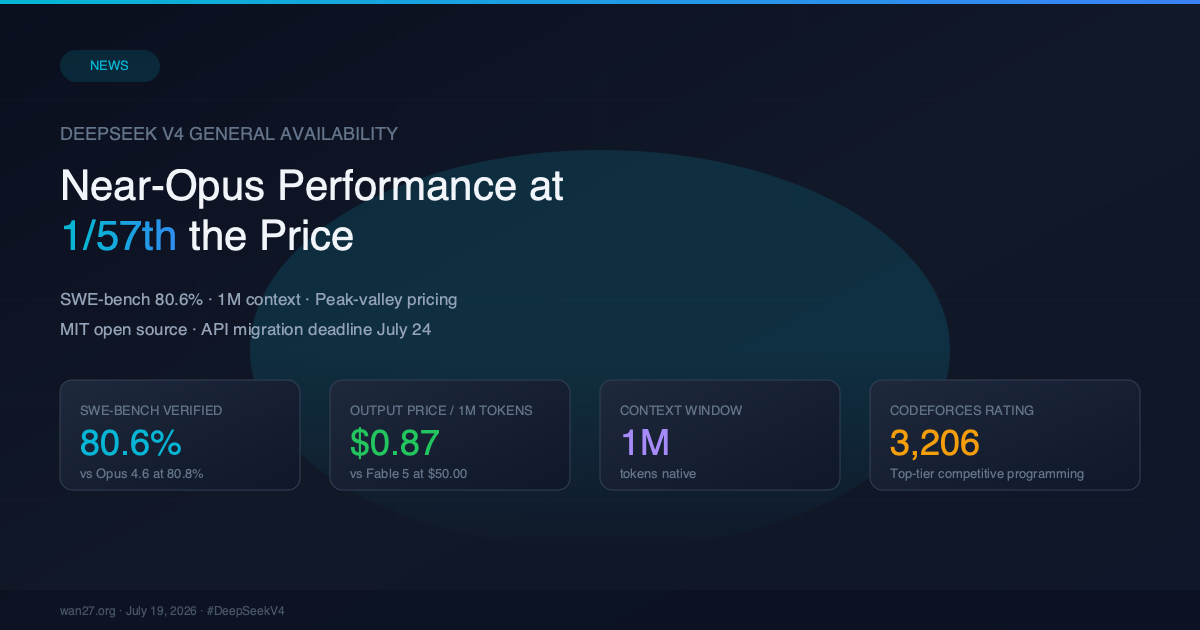
| DeepSeek V4 | 1.6T total, ~40B active | 1M | 2x H100 80 GB | General purpose |
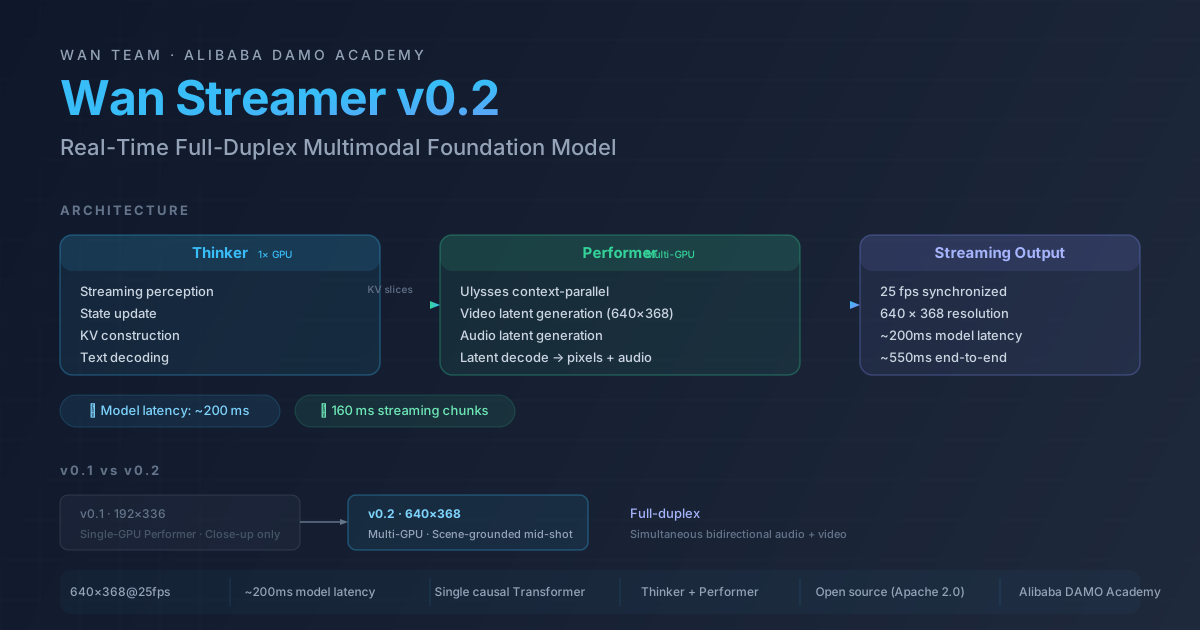
| Wan 2.7 | 14B dense | 128K | 8 GB GPU | Video generation |
The upgrade path is clear: run K2.7 locally now, test K3 via API, and switch to local K3 after July 27 only if your hardware supports it. For most teams, the hybrid approach — sensitive data on local K2.7, hard tasks on K3 cloud — is the most practical setup for the foreseeable future. Still unsure where your setup lands? The guide below settles it in seconds.
Quick Decision Guide
- Do you have 8x H100 80 GB or more? You can run K3 in production. Read the staging guide: Kimi K3 HuggingFace preparation.
- Do you have 4x H100 80 GB? You can experiment with K3 at reduced context. Expect slow generation and plan for testing only.
- Do you have a Mac Studio with 512 GB or less? You cannot run K3 usefully. Use the API.
- Do you have a desktop GPU with 24-48 GB? You cannot run K3 at all. Use K2.7 Code locally and K3 API for frontier tasks.
- Do you have a laptop? Use the API. No local model at this scale runs on your hardware.
Common Deployment Pitfalls and How to Fix Them
Hardware is the hard gate, but even teams with the right GPUs hit deployment-stopping errors. Here are the three scenarios that kill most K3 deployment attempts — and exactly how to recover.
Scenario 1: "OOM before the first token"
Symptoms: vLLM or SGLang crashes during model loading. The error references torch.cuda.OutOfMemoryError before any generation begins.
Root cause: You are loading BF16 weights on a cluster where the weight size alone exceeds available VRAM. The 594 GB weights must fit entirely before the first KV cache entry is allocated.
Resolution strategy:
- Run
nvidia-smiand sum the free VRAM across all GPUs. If total free VRAM is under 600 GB, BF16 will not load. - Switch to a quantized format. Start with Q8 at ~450 GB. If that still does not fit, drop to Q6 at ~380 GB.
- If you are using tensor parallelism, confirm
--tensor-parallel-sizematches your actual GPU count. A mismatch of 4 vs 8 will not produce a clear error — the runtime will try to shard the model unevenly and OOM on one GPU while others sit idle.
Scenario 2: "Generation succeeds but throughput is unusably slow"
Symptoms: The model loads and generates tokens, but at under 1 token per second on hardware that should handle 50+ tok/s.
Root cause (in order of likelihood):
- CPU offloading is active. When VRAM runs out, some inference engines silently move layers to system RAM. Check your vLLM logs for
cpu_offloadorswap_spacewarnings. - NVLink is not configured or mismatched. On multi-node setups without NVLink or with PCIe-only interconnects, tensor parallelism adds communication overhead that can dominate generation time.
- KV cache default is too large for the remaining VRAM. If KV cache spills to CPU memory, generation speed drops by 10-100x.
Resolution strategy:
- Run
nvidia-smi topo -mand verify NVLink connections exist between all GPUs. If any pair showsNODEinstead ofNV#, you are running without peer-to-peer access on that link. - Explicitly set
--max-model-lento a conservative value (e.g., 32768) and benchmark throughput before increasing it. - Set
--gpu-memory-utilization 0.90to reserve 10% headroom and prevent silent CPU offloading.
Scenario 3: "Weights download but vLLM rejects the model architecture"
Symptoms: ValueError: Unsupported model architecture or KeyError: 'model_type' when loading from HuggingFace after July 27.
Root cause: K3 uses KDA (Kimi Delta Attention) and Stable LatentMoE — custom architecture components that are not in the stable vLLM or SGLang releases at launch time. Even if the model card is correct, the inference engine may not recognize the config keys.
Resolution strategy:
- Check the HuggingFace model card for
trust_remote_code. If Moonshot ships a custommodeling_kimi_k3.pyin the repo, you must pass--trust-remote-codeto vLLM. - Upgrade vLLM to the latest nightly build:
pip install vllm --pre --upgrade. Major model releases often land in nightly vLLM within 24-48 hours of weight publication. - If vLLM still fails, test with SGLang — the two engines often implement support for new architectures on different timelines. Run:
python -m sglang.launch_server --model-path moonshotai/Kimi-K3-Instruct --trust-remote-code --tp 8. - As a last resort, use the HuggingFace
transformerspipeline directly withdevice_map="auto". It will be slower (no continuous batching, no PagedAttention) but will confirm whether the weights themselves are valid.
Rule of thumb for new model deployments: If a frontier model releases on a Tuesday, expect stable vLLM support by Friday. Any attempt to deploy on release day without the nightly build will almost certainly fail due to unrecognized architecture keys.
FAQ
What are the minimum GPU requirements for Kimi K3?
The minimum for experimental use is 4x H100 80 GB GPUs (320 GB total VRAM). For production use with full context, you need 8x H100 80 GB (640 GB total VRAM). Consumer GPUs like the RTX 4090 cannot run K3 in any quantization.
How much VRAM does Kimi K3 need to run?
At BF16 precision, the model weights occupy 594 GB. With KV cache and runtime overhead, you need approximately 720 GB of available VRAM for sustained use. Even at Q4 quantization, estimates place the model at 300-400 GB.
Can Kimi K3 run on an RTX 4090 or RTX 5090?
No. A single RTX 4090 has 24 GB of VRAM and an RTX 5090 has 32 GB. K3 requires hundreds of gigabytes of memory. Even multi-GPU desktop setups (2x RTX 5090 = 64 GB) come up short by a factor of 3-5x.
Can Kimi K3 run on a Mac?
Not for production use. A Mac Studio M4 Ultra with 512 GB unified memory can attempt Q4 inference, but constant swapping and limited context make it impractical for real workloads. The API is a better option.
What operating system is required for Kimi K3?
Linux (Ubuntu 22.04 or RHEL 9+) with NVIDIA drivers 550+ and CUDA 12.4+. Windows and macOS are not supported for multi-GPU inference.
How much storage do I need for Kimi K3?
At minimum, 600 GB for the BF16 weights. Realistically, plan for 2 TB to accommodate weights, KV cache, and quantized copies. The download also requires temporary extraction space.
Will GGUF quantization make K3 run on consumer hardware?
No. Even at 2-bit quantization, estimates place K3 at roughly 200 GB — far beyond any consumer GPU. Quantization reduces the requirement from 8x H100 to 4x H100, not from H100 to RTX.
Is there a cloud service where I can use Kimi K3 right now?
Yes. K3 is available through Moonshot's API at platform.kimi.ai ($3/MTok input, $15/MTok output), through OpenRouter as moonshotai/kimi-k3, and through AWS Marketplace. See Kimi K3 OpenRouter guide for setup instructions.
Where can I find the official Kimi K3 benchmarks?
Moonshot released the full benchmark suite alongside K3's launch. Kimi K3 benchmarks breakdown covers every score — coding, reasoning, math, and vision — with independent verification.
When will Kimi K3 be on HuggingFace, and what is the hardware setup?
The open weights are confirmed for July 27, 2026 on HuggingFace at moonshotai/Kimi-K3-Instruct. Kimi K3 HuggingFace guide details the exact download steps, model files, and deployment commands.
Bottom Line
Kimi K3 is not a local model. It is a cluster model. The hardware requirements are prohibitive for everyone except organizations with dedicated GPU infrastructure. That is not a limitation of the model — it is the reality of a 2.8-trillion-parameter frontier system that delivers top-tier coding and reasoning performance.
If you have the hardware, the weights drop July 27 — start with the Kimi K3 HuggingFace setup guide. If you do not, test the K3 API at $3 per million input tokens on platform.kimi.ai — the OpenRouter setup walkthrough takes under 5 minutes. And if you need local inference for tasks that do not require frontier intelligence, run Wan 2.7 on the GPU you already own.
The honest split for most teams: stay on K3 API for frontier work, run your fast-turnaround tasks on local hardware, and watch the Kimi K3 open-source release timeline for community quantizations that might eventually bring K3 within reach of workstation-class hardware. See Kimi K3 benchmarks and K3 vs Fable comparison to decide if the cost is worth it.