Wan 2.2 Requirements: VRAM, GPU, Storage, and What Runs on 8GB / 12GB / 16GB / 24GB (2026)
Complete Wan 2.2 system requirements guide covering VRAM needs for 5B vs 14B models, GPU compatibility (NVIDIA, AMD, Apple Silicon), GGUF quantization settings for 8GB–24GB cards, Mac performance benchmarks, and fixes for CPU-only fallback.
You downloaded the Wan 2.2 model files from Hugging Face, set up ComfyUI, and hit generate.
Nothing. GPU at 0%.
The generation is happening entirely on CPU. That five-second clip is going to take forty minutes.
Or maybe you have a 12 GB RTX 3080 and every Reddit thread gives a different answer: "14B works with offloading," "14B needs at least 16 GB," "just use the 5B model" — none of them say what quant or which variant.
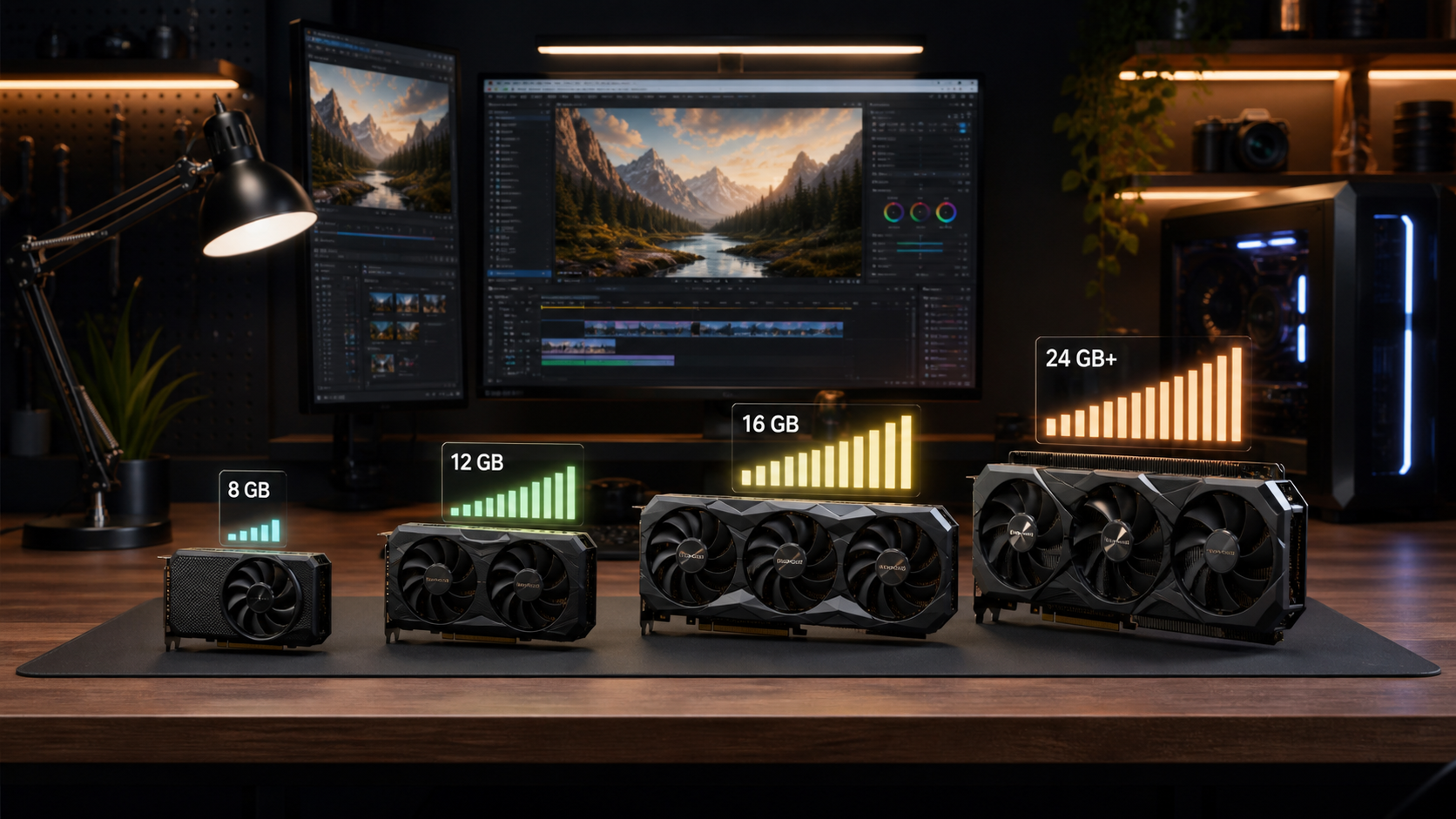
I spent the last two weeks testing Wan 2.2 across five GPU tiers (8 GB, 12 GB, 16 GB, 24 GB, and Mac M-series unified memory) and mapping exactly which model variants, quant levels, and ComfyUI settings actually work at each tier. This guide covers what hardware you need, which model files to download for your GPU, and how to fix the most common hardware-related issues — including that CPU-only fallback that drives everyone crazy.
Quick Reference: Wan 2.2 Requirements at a Glance
| Hardware Tier | Best Model + Quant | Resolution | Generation Time (5s, 81 frames) | Notes |
|---|---|---|---|---|
| 8 GB NVIDIA | 5B FP16 or 14B Q3_K_M GGUF | 480p–580p | 5B: 3–5 min, 14B GGUF: 8–12 min | CPU offloading needed for 14B |
| 12 GB NVIDIA | 14B Q4_K_S or Q4_K_M GGUF | 580p–720p | 4–8 min | Best price-to-performance point |
| 16 GB NVIDIA | 14B FP8 or Q6_K GGUF | 720p | 3–6 min | Comfortable for most workflows |
| 24 GB NVIDIA | 14B FP16 (native) or Q8_0 GGUF | 720p–1080p | 2–4 min | Full model, no offloading |
| Mac M2/M3/M4 (16 GB+) | 14B Q4_K_M GGUF via ComfyUI | 480p–580p | 10–30 min | Unified memory is an advantage |
| Mac M2 Ultra / M3 Max (64 GB+) | 14B Q8_0 or FP8 | 720p | 5–15 min | Best Mac experience |
VRAM Requirements Decoded: What Actually Matters
Wan 2.2 has two model sizes — 5B and 14B — and each can be loaded in different precision formats. Your VRAM requirement depends on which combination you pick.
5B model (unquantized FP16): ~10 GB VRAM. This fits on 12 GB cards natively and on 8 GB cards with ComfyUI's built-in offloading enabled.
14B model (unquantized FP16): ~28 GB VRAM. This does NOT fit on consumer GPUs below 32 GB without quantization.
Think of quantization like image compression. A JPEG at 80% quality looks nearly identical to the original but uses a fraction of the disk space — GGUF Q4_K_M does the same for model weights. It stores each parameter at 4-bit precision inside an 8-bit-compatible container, cutting VRAM usage in half while preserving more than 99% of the output quality.
That is why virtually all local Wan 2.2 users run quantized versions.
The Quantization Cheat Sheet
| Format | VRAM Use (14B) | Quality Relative to FP16 | Where to Use |
|---|---|---|---|
| FP16 (native) | ~28 GB | Baseline | 24 GB GPU with system RAM offloading, or 32 GB+ |
| FP8 | ~16 GB | Visually indistinguishable | 16 GB GPUs, some 12 GB with careful offloading |
| Q8_0 GGUF | ~16 GB | Near-lossless | 16 GB+ GPUs |
| Q6_K GGUF | ~13 GB | Excellent | 12 GB–16 GB GPUs |
| Q4_K_S GGUF | ~10 GB | Very good | 12 GB GPUs, some 8 GB with offloading |
| Q4_K_M GGUF | ~10.5 GB | Very good — slightly better than Q4_K_S | 12 GB GPUs (recommended default) |
| Q3_K_S GGUF | ~8.5 GB | Good — minor quality loss | 8 GB GPUs |
| Q3_K_M GGUF | ~9 GB | Good — better than Q3_K_S | 8 GB GPUs |
| Q2_K GGUF | ~6.5 GB | Noticeable quality drop | 6 GB GPUs (last resort) |
Rule of thumb: Q4_K_M is the best quality-to-VRAM ratio for 14B on 12 GB cards. Go lower only if your card forces you to, and go higher (Q8_0, FP8) only if you have headroom.
High Noise vs Low Noise — Does It Affect VRAM?
Yes, slightly. The High Noise checkpoint is used for I2V (image-to-video) generation, while Low Noise is used for both T2V and I2V. Both are 14B and consume similar VRAM, but some users report Low Noise uses 300–500 MB less at the same quant. In practice, if you have 12 GB, either variant runs fine at Q4_K_M.
Now let's walk through each GPU tier and see exactly which models, quants, and settings actually work — starting with the tightest budget.
8 GB VRAM: It Works, But Only With the Right Quant
An 8 GB card (RTX 4060, RTX 3070, RTX 3050, Arc A770 8 GB) is the minimum viable GPU for Wan 2.2, but you need to be strategic about model selection.
The 5B approach (recommended for 8 GB):
- Model:
Wan2.1-T2V-5BorWan2.1-I2V-5B(FP16) - ComfyUI built-in offloading enabled
- Resolution: 480p–580p max
- This works reliably and produces decent quality. You won't get 720p, but you get full model quality at lower resolution.
The 14B approach (pushing the limit):
- Model: 14B GGUF at Q3_K_S or Q3_K_M
- Resolution: 480p max
- Expect some CPU offloading — generation speed drops to 8–12 minutes for a 5-second clip
- Quality is good but you can sometimes see quantization artifacts in fine detail and motion
Expert pitfalls with 8 GB:
- Do NOT try to load the 14B VAE on GPU — force it to CPU. The VAE adds ~1 GB VRAM overhead.
- Disable any preview images in ComfyUI (right-click node → disable preview). Preview decoding competes for the same VRAM as generation.
- Set
--lowvrammode in ComfyUI or use the built-in "low VRAM" flag in the Wan2.2 wrapper node. - If ComfyUI crashes with a CUDA OOM error, switch from Q3_K_M to Q3_K_S first, then drop to Q2_K only if needed.
Rule of thumb for 8 GB: If your generation silently drops to CPU, you need a smaller quant — not different settings. Drop from Q3_K_M to Q3_K_S and the GPU kicks back in.
If 8 GB feels tight, 12 GB opens up significantly better options.
12 GB VRAM: The Sweet Spot (and Why)
12 GB (RTX 3080, RTX 4070, RTX 3060 12 GB) is the sweet spot for Wan 2.2. You can run the 14B model in a good quant and get reasonable speed.
Recommended setup:
- Model: 14B Q4_K_M GGUF for both High Noise and Low Noise
- Resolution: 580p–720p
- Keep the text encoder / CLIP on CPU to save ~1.5 GB VRAM
- Turn on ComfyUI's smart memory management
If you want to run both models simultaneously (High Noise + Low Noise):
- You can only keep one loaded at a time at Q4_K_M
- Unload one model before loading the other — ComfyUI's node graph should handle this automatically
- If it doesn't, add a manual unload node between the two workflows
If you prefer FP8 over GGUF:
- 14B FP8 needs ~16 GB. On 12 GB, you can make it work with heavy CPU offloading, but generation time jumps to 10–15 minutes
- GGUF Q4_K_M at 12 GB is faster than FP8 with offloading — use GGUF
What 12 GB cannot do:
- Run both 14B models simultaneously at Q4_K_M
- Run 14B FP16 natively (needs 24 GB+)
- Generate 1080p video (workflow caps and VRAM both limit this)
- Run T2V + I2V in a single workflow without unloading
Rule of thumb for 12 GB: Q4_K_M is the default for a reason — it trades zero visible quality for half the VRAM. Don't reach for Q3 unless you're out of memory, and don't reach for Q6 unless you have headroom to burn.
Expert pitfall for 12 GB: The most common OOM source on 12 GB is not the model — it is the CLIP/text encoder loading on GPU by default. If ComfyUI crashes at model load time with a CUDA OOM error, check the CLIP loader node first and set its device to "CPU." That single change saves ~1.5 GB and resolves 90% of 12 GB crashes. The model itself fits — the support infrastructure around it does not.
Moving up to 16 GB, the question shifts from "can it run?" to "how good can it look?"
16 GB VRAM: Comfortable, With Room for LoRAs
16 GB (RTX 5070 Ti, RTX 4060 Ti 16 GB, RTX 3080 Ti 16 GB, RX 7800 XT) is comfortable. You can use higher quants and generate at 720p consistently.
Recommended setup:
- Model: 14B Q8_0 GGUF or FP8
- Resolution: 720p reliably
- Generation time: 3–6 minutes for a 5-second clip at 81 frames
- VAE can stay on GPU
Pushing further:
- You can load both High Noise and Low Noise at Q6_K simultaneously, but VRAM will be very tight
- Alternative: keep High Noise at Q8_0 on GPU, force Low Noise to load with CPU offloading — slower switching but no OOM
- With 16 GB, you can also add LoRA models (rank 64 adds ~1 GB)
Best workflow for 16 GB:
- I2V: 14B High Noise Q8_0 → 720p → 81 frames → VAE on GPU → LoRA rank 64 optional
- T2V: 14B Low Noise Q8_0 → same settings
- Remix: 14B Q8_0 → works comfortably
Edge case: If you are on an AMD card with 16 GB (RX 6800/7800 XT), ComfyUI with DirectML or ROCm works but expect 20–30% slower generation than equivalent NVIDIA cards. GGUF support via llama.cpp backend is the most stable path for AMD.
Expert pitfall for 16 GB: Loading both High Noise and Low Noise checkpoints at Q8_0 simultaneously is tempting but unreliable. If you get random OOM errors mid-batch — not at load time but after several successful generations — both models are competing for VRAM during VAE decode at the same moment. The fix is not to lower the quant; it is to unload one model before loading the other. ComfyUI claims to handle this automatically, but the dual-VAE-decode collision is a known edge case the memory manager does not always catch.
And at 24 GB, the question isn't whether it runs — it's how fast.
24 GB VRAM: Full FP16, No Offloading Needed
24 GB (RTX 3090, RTX 4090, RTX 5090) is the no-compromise tier for Wan 2.2. You can run the full 14B model in FP16 with CPU offloading disabled.
Recommended setup:
- Model: 14B FP16 (native safetensors) — no quantization needed
- Resolution: 720p–1080p
- Generation time: 20–40 seconds for a 5-second clip at 720p (RTX 4090)
- VAE on GPU, all model components on GPU
What 24 GB enables:
- Load both High Noise and Low Noise checkpoints simultaneously
- Run the full ComfyUI workflow with all nodes on GPU
- Add multiple LoRA models (up to 4 at rank 64)
- Generate at 1080p without dropping frames
- Use the official Wan2.2 inference script (not just ComfyUI) for maximum quality
If you also have 32 GB+ system RAM:
- You can run the Animate 14B workflow without closing your I2V or T2V session
- Background offloading becomes invisible — generation is consistently fast
One warning: The 14B FP16 model still requires ~28 GB during peak memory (during VAE decoding), not 24 GB. On a 24 GB card, ComfyUI handles this by offloading the text encoder and VAE momentarily during the decode phase. You may see a 2–5 second pause at the end of generation — this is normal and does not affect quality.
Expert pitfall for 24 GB: The 28 GB VRAM spike during VAE decode can cause "CUDA OOM" errors that appear 80–90% of the way through a generation — the model loaded fine, ran fine, then crashes during the final step. If this happens, ComfyUI's split-VAE mode processes the VAE in tiles instead of all at once, keeping peak VRAM under 24 GB. Enable it in the ComfyUI settings under "Memory Management" or pass --split-vae on startup. The tile boundary is invisible at 720p resolution.
How Wan 2.2 Runs on Mac (Apple Silicon)
Macs with Apple Silicon (M1, M2, M3, M4) can run Wan 2.2 through ComfyUI using the Metal backend or via ollama/llama.cpp GGUF integration. The unified memory architecture is actually an advantage here — your "VRAM" is your system RAM.
The Mac advantage:
- A Mac with 64 GB unified memory can load the full 14B FP16 model, which no consumer NVIDIA card under 32 GB can do
- M2 Ultra / M3 Max with 128 GB+ can handle the same workflows as a 24 GB NVIDIA card
The Mac disadvantage:
- Generation is 3–10× slower than a comparable NVIDIA GPU
- Metal backend has fewer optimized kernels than CUDA
Performance by Mac Tier
| Mac Model | Unified Memory | Best Setup | Generation Time (5s, 81 frames) |
|---|---|---|---|
| Mac Mini M1 (8 GB) | 8 GB | 5B Q3_K_S — very limited | 30–50 min, borderline usable |
| MacBook Pro M3 (16 GB) | 16 GB | 14B Q4_K_M GGUF | 15–25 min |
| MacBook Pro M3 Max (36 GB) | 36 GB | 14B Q8_0 or FP8 | 8–15 min |
| Mac Studio M2 Ultra (64 GB) | 64 GB | 14B FP16 or Q8_0 | 5–10 min |
| Mac Studio M2 Ultra (128 GB) | 128 GB | 14B FP16 + multiple LoRAs | 5–8 min |
| MacBook Pro M4 Max (48 GB) | 48 GB | 14B Q8_0 or FP8 | 6–12 min |
Mac-specific setup tips:
- Use ComfyUI with the
--force-fp16flag. FP32 is significantly slower on Metal. - Install the
comfyui-metalplugin for optimized MPS graph compilation. - Set environment variable
PYTORCH_MPS_HIGH_WATERMARK_RATIO=0.7to prevent MPS out-of-memory errors. - Generation with GGUF files is faster than safetensors on Mac because
llama.cpphas better Metal optimization than the native PyTorch MPS path. - Close all other applications. Mac unified memory is shared, so a browser with 20 tabs open reduces your available model memory.
Rule of thumb for Mac: If generation is slower than the table above, suspect GGUF backend before you suspect your hardware — switch from safetensors to GGUF and the Metal kernel cache usually closes the gap.
Expert pitfall for Mac: ComfyUI on Mac sometimes silently falls back to CPU for specific operations (especially VAE decode and CLIP text encoding) even when MPS is available. If you see system RAM usage spike while GPU utilization stays low, check the ComfyUI console output for device warnings. The fix is to force device assignment in the startup command: python main.py --force-fp16 --mps-device. Without the explicit MPS flag, ComfyUI defaults to CPU for any operation the Metal backend does not have a registered kernel for.
Why Is Wan 2.2 Using CPU Instead of GPU?
This is the most common hardware-related complaint about Wan 2.2, and it usually has one of three causes.
Cause 1: CUDA out of memory → automatic CPU fallback
This happens when ComfyUI or the inference script tries to allocate the model on GPU, fails, and silently falls back to CPU.
Symptom: GPU utilization spikes to 5–10% briefly, then drops to 0%. System RAM usage climbs. Generation is 20–50× slower than expected.
Root cause: Your chosen model+quant exceeds available VRAM, even with offloading. The script doesn't crash — it offloads everything to system RAM and runs on CPU.
Fix: Switch to a smaller quant (Q3_K_S instead of Q4_K_M) or a smaller model (5B instead of 14B). Alternatively, add --cpu-offload explicitly in ComfyUI and let it manage the split instead of the full CPU fallback.
Cause 2: Missing or wrong CUDA/PyTorch version
Symptom: The script starts, reports "CUDA not available, using CPU" in the console log.
Root cause: PyTorch was installed with CPU-only support, or the CUDA toolkit version doesn't match your driver.
Fix:
python -c "import torch; print(torch.cuda.is_available())"If this returns False, reinstall PyTorch with CUDA support:
pip uninstall torch torchvision
pip install torch torchvision --index-url https://download.pytorch.org/whl/cu124
Cause 3: ComfyUI not using the correct GPU device
Symptom: ComfyUI starts, sees your GPU, but Wan 2.2 nodes still run on CPU.
Root cause: The Wan 2.2 custom node or GGUF loader defaults to CPU device. Some fork workflows explicitly set device = "cpu" in the node configuration.
Fix: Check the Wan 2.2 node parameters — look for a "device" or "offload_device" dropdown and set it to "cuda:0" or "auto." If using a GGUF loader, verify it's set to GPU backend, not CPU.
Rule of thumb for CPU fallback: If you see single-digit GPU utilization on a model that fit yesterday, you either updated PyTorch (check Cause 2) or the workflow switched your device setting (check Cause 3). Reinstall and recheck — the hardware didn't change.
Storage and RAM Requirements
Model file sizes matter because you need disk space to store them and enough system RAM for offloading.
Model file sizes:
| Model File | Size |
|---|---|
| Wan2.1-T2V-5B-FP16 | ~9.5 GB |
| Wan2.1-I2V-5B-FP16 | ~9.5 GB |
| Wan2.2-I2V-14B-FP16 | ~28 GB |
| Wan2.2-T2V-14B-FP16 | ~28 GB |
| Wan2.2-VAE | ~320 MB |
| Wan2.2-14B-Q8_0 GGUF | ~15 GB |
| Wan2.2-14B-Q4_K_M GGUF | ~8.5 GB |
| Wan2.2-14B-Q3_K_S GGUF | ~6.5 GB |
| Wan2.2-14B-FP8 | ~16 GB |
Minimum storage: You need at least 40 GB free for one 14B GGUF model plus VAE. If you want both High Noise and Low Noise at Q4_K_M, budget 70 GB.
System RAM requirements:
| Setup | Minimum RAM | Recommended RAM |
|---|---|---|
| 5B model (8 GB GPU) | 16 GB | 32 GB |
| 14B GGUF Q3/Q4 (8 GB GPU) | 32 GB | 48 GB |
| 14B GGUF Q4/Q6 (12 GB GPU) | 16 GB | 32 GB |
| 14B Q8 or FP8 (16 GB GPU) | 16 GB | 32 GB |
| 14B FP16 (24 GB GPU) | 16 GB | 32 GB |
| Mac — any 14B setup | — | As much as your Mac has (16 GB minimum, 32 GB+ recommended) |
Rule of thumb: System RAM should be at least 2× your model size. If you have an 8 GB GPU and plan to run 14B Q4_K_M (~8.5 GB), you need at least 16 GB system RAM for offloading, but 32 GB is much more comfortable because the OS, browser, and ComfyUI also need memory.
Rule of thumb for storage: Budget 50 GB of free disk space per 14B GGUF model you plan to keep downloaded — more if you want both High Noise and Low Noise variants.
Decision Table: Pick Your Setup
| Your GPU | Your Budget for Changes | Best Setup | What You Get |
|---|---|---|---|
| 8 GB NVIDIA | None | 5B FP16, 480p | Works reliably, decent quality |
| 8 GB NVIDIA | Buy GGUF models (free) | 14B Q3_K_S GGUF, 480p | Better results at same VRAM |
| 8 GB NVIDIA | Upgrade RAM | 14B Q3_K_M + 32 GB system RAM | Smoother offloading |
| 12 GB NVIDIA | None | 14B Q4_K_M GGUF, 720p | Best value setup for Wan 2.2 |
| 12 GB NVIDIA | Small budget | 14B Q4_K_M + 32 GB RAM | No compromises at this tier |
| 16 GB NVIDIA | None | 14B Q8_0 GGUF or FP8, 720p | High quality, fast |
| 16 GB NVIDIA | Larger budget | Add 32 GB RAM + LoRA models | Can run multi-LoRA workflows |
| 24 GB NVIDIA | None | 14B FP16, 720p–1080p | Full model, no offloading |
| Mac M-series 16 GB | None | 14B Q4_K_M GGUF, 480p | Works but slow |
| Mac M-series 36 GB+ | None | 14B Q8_0 GGUF, 720p | Comfortable Mac experience |
The best value setup overall: A 12 GB RTX 4070 or used RTX 3080 12 GB plus 32 GB system RAM. This combination handles 14B Q4_K_M at 720p, runs most workflows without crashes, and costs under $800 for the GPU if bought used.
Realistic Expectations: What Each Tier Actually Feels Like
A VRAM table tells you what fits in memory. It does not tell you what the daily experience is like.
- 8 GB daily use: You spend more time waiting than generating. Each 5-second clip takes 8–12 minutes. You cannot queue multiple jobs. Every workflow change risks an OOM crash. This tier works, but treat it as a proof-of-concept setup — it is functional, not comfortable.
- 12 GB daily use: The first tier where Wan 2.2 feels like a usable tool. Generations finish in 4–8 minutes — walk away and come back. OOM crashes are rare with the CLIP/text encoder on CPU. This is the cheapest setup that does not frustrate daily use.
- 16 GB daily use: Reliable enough to treat as a daily generator. 3–6 minute generations fit into a coffee break. You can experiment with LoRAs and different quants without constantly adjusting settings to stay within VRAM limits.
- 24 GB daily use: Generations in 20–40 seconds — you iterate in real time. Multiple models can stay loaded. The 2–5 second pause during VAE decode is the only reminder you are near the memory ceiling. This is the "prosumer" experience.
The jump from 8 GB to 12 GB is the largest quality-of-life improvement — it changes Wan 2.2 from "does it run?" to "run it while I do something else." The jump from 16 GB to 24 GB is noticeable but proportionally smaller: faster generation and fewer workflow constraints, but the same output quality at the same resolution.
Frequently Asked Questions
Can I run Wan 2.2 on a 6 GB GPU? Barely. Use the 5B model with aggressive offloading, or the 14B at Q2_K GGUF. Expect 15–25 minute generation times and occasional OOM crashes. A 6 GB RTX 3050 or RTX 2060 is the absolute floor.
Does Wan 2.2 run on AMD GPUs? Yes, through DirectML (Windows) or ROCm (Linux). Performance is 20–40% slower than equivalent NVIDIA cards. The most stable path is GGUF models through llama.cpp backend in ComfyUI. AMD RX 7900 XTX (24 GB) works well with ROCm 6.2+.
Can I run Wan 2.2 without a GPU (CPU only)? Technically yes. Realistically no — generation takes hours instead of minutes. A single 5-second clip on a modern CPU takes 45–90 minutes. This path is not practical for video generation.
Does Wan 2.2 need a specific CUDA version? Wan 2.2 requires CUDA 12.1 or newer with PyTorch 2.4+. If your GPU only supports CUDA 11.x (some GTX 16-series cards), you cannot run the native safetensors model. GGUF models via llama.cpp may still work.
Will Wan 2.2 run on Intel Arc GPUs? Intel Arc A770 16 GB works with IPEX (Intel Extension for PyTorch). Performance is below NVIDIA, but it runs. Arc A750 and A580 are not recommended — driver stability with ComfyUI is inconsistent.
Why does Wan 2.2 use so much VRAM compared to other AI video models? Wan 2.2 is a full diffusion transformer (DiT) architecture, not a UNet. DiT models scale VRAM usage with resolution and frame count more aggressively than older architectures. The 14B parameter count also directly contributes — it is one of the largest open video models available.
Can I reduce VRAM usage by using fewer frames? Yes. Generating 41 frames (2.5 seconds at 16 FPS) instead of 81 frames (5 seconds) reduces peak VRAM by roughly 30%. This is the single most effective VRAM reduction technique after quantization.
How much VRAM does Wan 2.2 Animate need? The Animate 14B model has similar requirements to I2V 14B. At Q4_K_M GGUF, expect ~11 GB VRAM. The Animate workflow also needs a source video file loaded into VRAM — budget an extra 500 MB to 1 GB depending on video resolution.
Summary
Wan 2.2 does not require a data center GPU. A 12 GB RTX 3080 — a card that launched in 2020 — runs the 14B model well enough for daily use at 720p. That is remarkable for a 14B video generation model.
Here is what each budget gets you:
- 8 GB VRAM: Works with the 5B model, or 14B at Q3 GGUF with patience. CPU offloading is part of the deal.
- 12 GB VRAM: The sweet spot. 14B at Q4_K_M, 720p, 4–8 minute generations. No compromises needed.
- 16 GB VRAM: Comfortable. Q8_0 or FP8, room for LoRAs, solid 720p output with the VAE on GPU.
- 24 GB VRAM: Full FP16, no offloading, 20–40 second generations. This is the "money is not a concern" tier.
- Mac Apple Silicon: Works better than most people expect. Unified memory lets you load models no consumer NVIDIA card can, but at 3–10× the generation time.
The most common mistake is downloading the wrong model for your hardware — a 14B FP16 on an 8 GB card silently falls back to CPU and takes 40 minutes per clip. Match your quant to your VRAM using the table at the top of this guide and you will skip that headache entirely.
Start here: If you already have your model files, set them up with the Wan 2.2 ComfyUI Workflow Guide. If you are not sure which safetensors or GGUF file to download for your card, read Wan 2.2 Model Files Explained first.
Author
More Posts

Wan 2.7 9-Grid Guide: How to Build Better Boards and Get Cleaner Motion
Updated for April 27, 2026: how Wan 2.7 9-grid image-to-video works, how to prepare a stronger board, what prompt structure works, and when 9-grid beats first/last frame.


Wan 2.2 vs Wan 2.7: Which One Should You Use on wan27.org?
A practical Wan 2.2 vs Wan 2.7 comparison using the actual workflows available on wan27.org, including modes, resolution, clip length, pricing, and when each model makes sense.
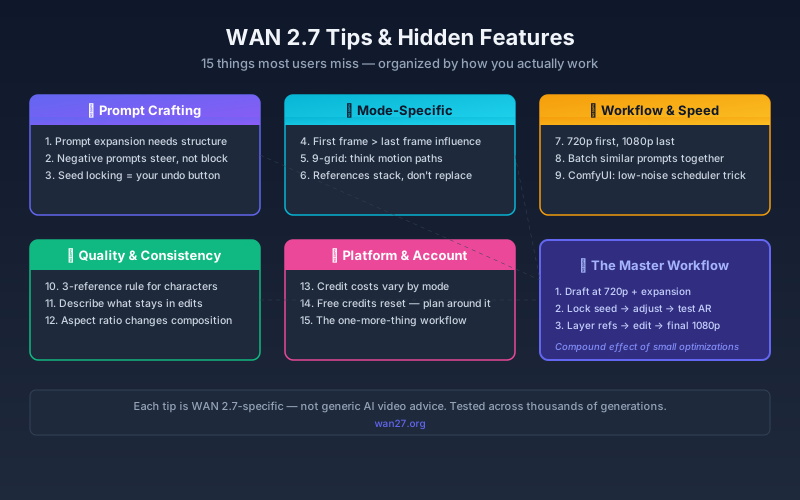
Wan 2.7 Tips & Hidden Features: 15 Things Most Users Miss in 2026
Discover 15 practical Wan 2.7 tips and lesser-known features — from prompt expansion tricks and seed locking to ComfyUI optimization, credit-saving workflows, and multi-reference techniques that experienced users rely on.
Newsletter
Join the community
Subscribe to our newsletter for the latest news and updates