Best Input Image Resolution for Wan 2.2: 480p, 720p, Aspect Ratio, and Reference Quality (2026)
What input image resolution, aspect ratio, and source quality actually improve Wan 2.2 I2V output — including recommended sizes for 480p, 720p, square, and vertical targets, crop strategy, the 2x rule, and why higher resolution does not always mean better video.
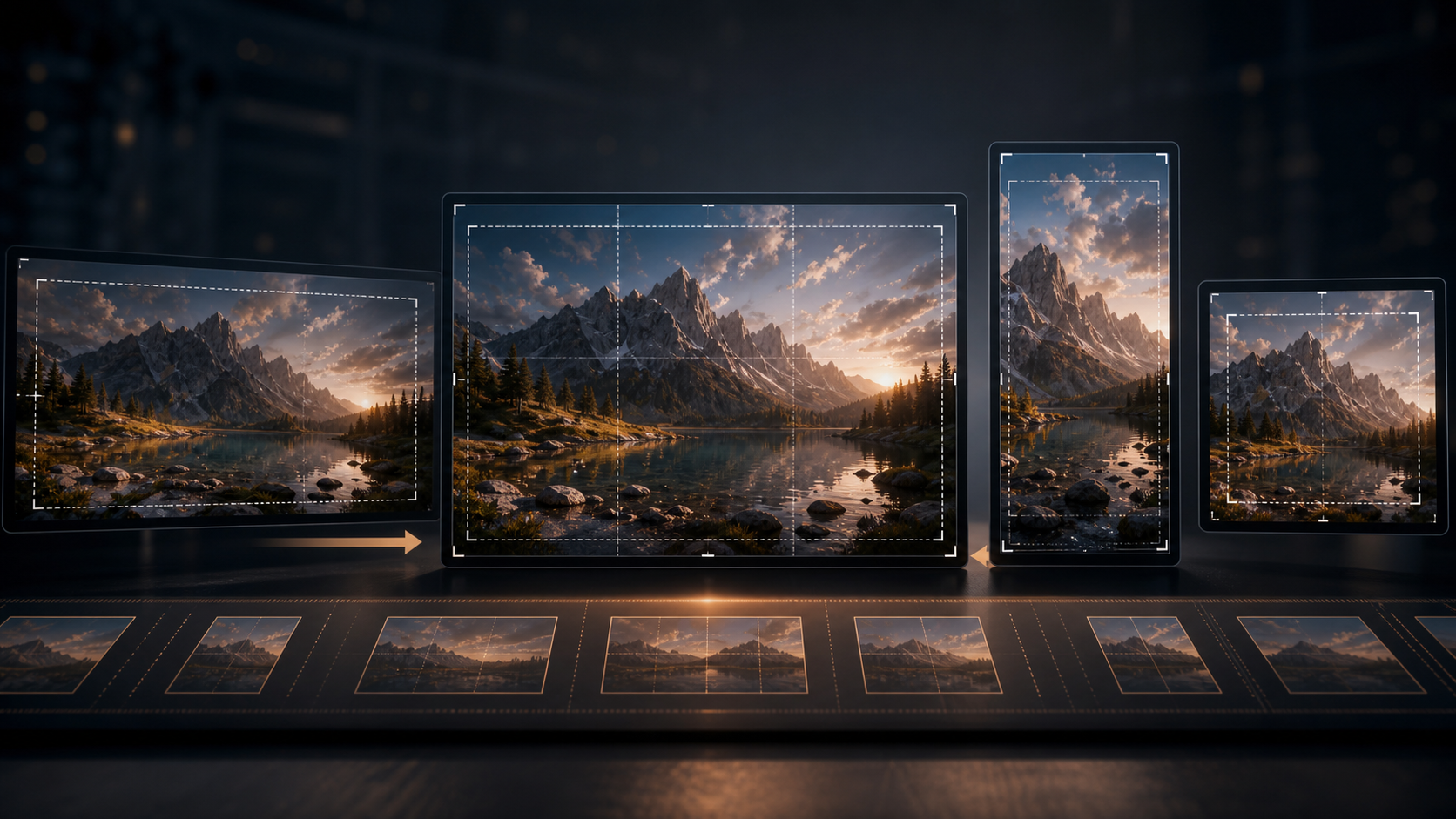
You found the perfect reference image. High resolution, clean composition, exactly the subject you want. You load it into Wan 2.2 I2V, set 720p output, hit generate — and the video is grainy, pixelated, and nothing like the source quality.
Or you tried a lower resolution image and it worked fine, but you cannot figure out why.
Every forum gives partial advice: "match the resolution," "use 1 megapixel," "crop don't stretch." None of them explain why the same input behaves differently at different output settings, or how to choose between 480p and 720p when your VRAM is limited.
I tested input images at 15 different resolutions and aspect ratios across 480p and 720p output targets, documented how Wan 2.2 internally processes the source image before generation, and mapped the quality tradeoffs of each common input size. This guide covers exactly what input resolution to use for each output target, how aspect ratio affects motion quality, and which source image mistakes guarantee bad output regardless of your settings.
The Short Answer
| Output Target | Best Input Resolution | Aspect Ratio | What Happens If You Use a Different Size |
|---|---|---|---|
| 480p (832×480) | 832×480 or 2× (1664×960 max) | 16:9 | Model downscales or upscales to match — quality loss on extreme mismatches |
| 720p (1280×720) | 1280×720 or 2× (2560×1440 max) | 16:9 | Same — keep within 1–2× of target for best results |
| Square | 624×624 | 1:1 | Safe aspect ratio — trained on this |
| Vertical (9:16) | 736×1280 or 704×1280 | 9:16 | 736×1280 produces better motion than 704×1280 |
| Tall portrait | 480×832 | ~9:16 | Works for portrait-oriented subjects |
| Wide (3:2) | 1248×832 or 960×640 | 3:2 | Clean output, less common in training data |
| Ultra-wide (1:3–3:1) | Varies | 1:3 to 3:1 | Support confirmed but quality drops near the edges |
The core rule: Match your input image resolution to your output target resolution, or go up to 2× on each axis max. Beyond 2×, the model downscales aggressively and you gain nothing — or worse, introduce aliasing artifacts.
To understand why this rule exists, you need to see what Wan 2.2 actually does with your image before it starts generating.
What the Model Actually Does With Your Source Image
Understanding why input resolution matters starts with how the model actually uses your source image.
When you load an image into Wan 2.2 I2V, the model does not generate at the image's native resolution. It resizes the input to fit the latent dimensions you set in the sampler node (or the --size parameter in the CLI). This resize happens before any denoising begins.
If your input image is much larger than the output target (e.g., a 4K photo fed into a 480p generation):
- The model downscales the image to 832×480
- Fine details from the original are lost during downscaling
- The generation starts from a lower-quality version of your source
- You wasted the extra resolution — the model never saw it
If your input image is much smaller than the output target (e.g., a 256×256 thumbnail fed into a 720p generation):
- The model upscales the image to 1280×720
- The upscaled version is blurry
- Wan 2.2 can sometimes sharpen blurry inputs during denoising, but it cannot invent detail that was never there
If your input image resolution matches the output target (e.g., 1280×720 input → 720p generation):
- The model passes the image through at full fidelity
- No upscaling or downscaling artifacts
- The starting point for denoising is as clean as possible
Rule of thumb: Feed the model exactly the resolution you want it to output. If you cannot generate at 720p due to VRAM limits, generate at 480p and feed it a 480p input — do not feed a high-res image into a low-res generation and expect the detail to carry through.
The 2× Rule
The community finding from the Wan 2.2 GitHub and Reddit discussions is that you can safely go up to 2× the output resolution on each axis before you see negative effects. A 720p generation (1280×720) can accept input images up to 2560×1440 without significant quality loss from downscaling. Beyond 2×, the downscaling algorithm starts discarding information aggressively, and the output quality does not improve — it may actually degrade due to aliasing.
| Output | Max Useful Input (2× rule) | Sweet Spot |
|---|---|---|
| 480p (832×480) | 1664×960 | 832×480 or 1248×720 |
| 720p (1280×720) | 2560×1440 | 1280×720 or 1920×1080 |
| Square (624×624) | 1248×1248 | 624×624 or 960×960 |
Expert pitfall for the 2× rule: The 2× rule applies to each axis independently, not total pixel count. A 2560×1440 input (3.7 megapixels) at a 720p output target is fine. A 5000×3000 input (15 megapixels) at the same output target will cause visible quality loss during downscaling. Total pixel count matters, but axis-by-axis mismatch is where artifacts actually come from.
Of course, the output resolution you can target depends on your GPU. Here is how VRAM limits your options — and how to choose an input image that matches.
Recommended Resolutions by VRAM Tier
Your GPU VRAM determines which output resolutions are possible, which in turn determines your input image requirements.
| VRAM | Max Output | Best Input | Notes |
|---|---|---|---|
| 8 GB | 480p (832×480) | 832×480 up to 1664×960 | Match 480p for reliability; higher inputs waste VRAM on downscaling |
| 12 GB | 720p (1280×720) | 1280×720 up to 1920×1080 | 720p at 81 frames needs ~10.5 GB at Q4_K_M |
| 16 GB | 720p (1280×720) | 1280×720 up to 2560×1440 | Can handle 2× inputs comfortably |
| 24 GB | 720p–1080p | Up to 2560×1440 for 720p | 1080p needs its own input matching |
For detailed VRAM requirements, see the Wan 2.2 Requirements Guide.
Once you know which resolution your GPU can handle, the next question is whether a higher-resolution input image gives you better output. The answer is not what most people expect.
Does Higher Input Resolution Always Mean Better Output?
No — and this is the most common misconception about Wan 2.2 I2V.
Higher input resolution helps when:
- The subject has fine details (text, fabric patterns, faces)
- The output target is also high resolution
- You stay within the 2× rule
Higher input resolution does NOT help when:
- The output target is 480p — all that extra detail is downscaled away
- The source image is already sharp at the target resolution
- The source image has obvious JPEG compression artifacts — higher resolution means more visible artifacts after downscaling
The Wan 2.2 community has documented a clear pattern: feeding a 4K photo into a 480p generation produces results that look worse than feeding a well-shot 832×480 photo. The downscaling introduces moiré patterns and softens edges unpredictably. A native-resolution input keeps the image data clean.
What actually determines output quality (in order of importance):
- Source image sharpness and lack of artifacts (not resolution)
- Input resolution matching the output target
- Aspect ratio alignment with training data (16:9 preferred)
- Subject clarity — clean backgrounds and well-framed subjects
- Total input resolution staying within the 2× rule
Expert pitfall for high-res inputs: If you must use a high-resolution source image (e.g., a stock photo at 4000×3000) and your output target is 720p, resize the image externally before feeding it to Wan 2.2. Use a photo editor or a script to downscale to 1280×720 or 1920×1080 first. Letting Wan 2.2 do the downscaling internally gives you less control over the resize algorithm and can introduce artifacts that a dedicated resize tool avoids.
Resolution is one half of the input equation. The other half is the shape of your image — and it matters almost as much as the size.
Aspect Ratio: What the Model Was Trained On and What Works Best
Wan 2.2 supports aspect ratios from 1:3 to 3:1, but it performs best on ratios close to what it was trained on.
Trained Aspect Ratios
The model was trained primarily on 16:9 video content. This means it understands motion, composition, and subject placement best at or near this ratio. Square (1:1) and vertical (9:16) are also well-supported but may show slightly different motion characteristics.
| Aspect Ratio | Wan 2.2 Support | Motion Quality | Best For |
|---|---|---|---|
| 16:9 (1.78:1) | Native — primary training ratio | Best | General purpose, YouTube, landscape |
| 1:1 (square) | Well-supported | Good | Social media thumbnails, Instagram |
| 9:16 (vertical) | Supported — 704×1280 or 736×1280 | Good — 736 better than 704 | TikTok, Reels, Shorts |
| 3:2 (1.5:1) | Supported | Good | Photography-oriented content |
| 4:3 (1.33:1) | Supported | Acceptable | Classic video ratio |
| 1:3 to 3:1 extremes | Supported but quality drops | Degraded — motion artifacts increase | Avoid unless necessary |
Why 736×1280 Beats 704×1280 for Vertical
The community discovered that 736×1280 produces noticeably better motion quality than 704×1280 for vertical video, even though both are valid 9:16 resolutions. The reason is that 736 is a multiple of 16 (the model's latent patch size) with better numerical properties for the Wan 2.2 architecture. The extra 32 pixels on the width give the model more room to resolve horizontal motion, which is the main weakness of narrow vertical formats.
Rule of thumb for aspect ratios: Stick to 16:9 if you have no platform requirement. If you need vertical, use 736×1280 — not 704×1280, not 608×1080, and definitely not arbitrary dimensions that are not multiples of 16.
Crop vs Pad vs Stretch
| Method | Effect on Output | When to Use |
|---|---|---|
| Crop to target ratio | Best — no distortion, model sees clean content | Always preferred |
| Pad with solid color | Acceptable — model may animate the padding area | When cropping loses important content |
| Stretch to fit ratio | Worst — introduces distortion the model inherits | Never — this guarantees bad results |
Expert pitfall for padding: If you pad a vertical image to 16:9 with black bars, Wan 2.2 may animate the black areas as part of the video — introducing noise or motion in regions you intended to be empty. Use a neutral gray or a subtle blur background instead of pure black or white for padding. The model treats every pixel as content.
Resolution and aspect ratio set the frame. What you put inside that frame matters just as much.
Source Quality: What Makes an Input Image Work (or Fail)
Input resolution is only half the equation. The quality of your source image matters as much as the size.
What Makes a Good Source Image
- Sharp focus: Mildly blurry inputs produce blurry video. Wan 2.2 can sharpen slightly during denoising, but it is not a restoration tool.
- Minimal compression artifacts: JPEG artifacts at quality 60 or below become amplified in motion. The model interprets compression blocks as real features and tries to animate them. Use PNG or JPEG quality 95+.
- Clean background: Busy backgrounds confuse the model. A subject against a clean or slightly blurred background produces smoother motion.
- Well-lit subject: Lighting variation in the source image is what the model uses to infer depth and motion. Flat, overexposed, or underexposed images produce flat video.
- Face visible and sharp: For character videos, the face quality in the source image directly determines face quality in the output. Blurry faces cannot be recovered.
What a Bad Source Image Looks Like
| Source Issue | Effect on Video | Can Post-Processing Fix It? |
|---|---|---|
| Heavy JPEG artifacts | Crawling noise, blocky motion in flat areas | No — re-export the source at higher quality |
| Motion blur | Blurry output, no recovery | No — use a different source frame |
| Oversharpened (halo artifacts) | Edge flickering, "boiling" in motion | No — use the original unsharpened version |
| Upscaled from low resolution | Waxy, plastic-looking motion, no detail | Partially — only if the upscale was done with a good model |
| Face heavily edited / AI-generated | Uncanny motion, face distortions | Not reliably — the model struggles with AI-generated faces |
| Very low resolution (<256px on any axis) | Blurry, the model invents details | Upscale to at least 480p target before feeding |
Rule of thumb for source quality: If the source image looks bad to your eye at 100% zoom, the video will look worse. Fix the source before you generate. A 30-second source fix saves 10 minutes of rerolls.
Even with the right resolution and a clean source, a few common mistakes can undo all your preparation. Here is what to avoid — and how to fix each one.
Common Mistakes That Ruin Output
Mistake 1: Feeding a low-quality JPEG and expecting Wan 2.2 to fix it. The model is a video generator, not an image restorer. Compression artifacts become motion artifacts. Re-export your source at PNG or maximum JPEG quality before feeding it in.
Mistake 2: Using a 4K source image for a 480p generation. The detail is downscaled away, and the downscaling can introduce moiré patterns and aliasing that make the output look worse than a native 480p input. Resize to match your target.
Mistake 3: Feeding a square image into a 16:9 generation without cropping or padding. The model stretches the image to fit the latent dimensions, distorting the subject. Always match aspect ratios between input and output.
Mistake 4: Using an AI-generated face as the source image. Wan 2.2 trained on real video frames, not AI-generated images. AI faces often have subtle artifacts (asymmetric eyes, unnatural skin texture) that the model amplifies in motion. The output will have a "waxy" or "uncanny" look. Use real photographs when possible.
Mistake 5: Assuming more resolution = better output. Beyond the 2× rule, higher resolution inputs do not improve quality and can degrade it. Resolution is necessary but not sufficient — source sharpness, aspect ratio matching, and subject clarity all matter more.
Rule of thumb for troubleshooting bad I2V output: If your Wan 2.2 I2V result looks bad, check the input before you change the parameters. Nine times out of ten, the problem is a resolution mismatch, a compression artifact, or a wrong aspect ratio — not the prompt or the guidance setting. Fix the input, regenerate, and only touch parameters if the input was already clean.
Still have questions? Here are the most common ones.
Does Wan 2.2 upscale my input image to match the output resolution? Yes — the model resizes your input to match the latent dimensions set in the sampler. If you feed a 640×480 image into a 1280×720 generation, the model upscales it first. The upscaling is basic bilinear interpolation, not an AI upscale — so the input will be blurry before generation starts.
Can I use a screenshot as a reference image? Screenshots work but often have compression artifacts from the screen capture process. If the screenshot is sharp and saved as PNG, it is fine. If it is a re-compressed JPEG from a messaging app, the artifacts will amplify in motion.
What resolution should I use for a character reference image? Match the output target. If you are generating at 720p, feed a 1280×720 image of the character. Higher resolution helps only if the character has fine details (jewelry, textures, specific clothing patterns). For character consistency, the face must be sharp and well-lit in the source image.
Does input image resolution affect generation speed? Minimally. The model resizes the input once at load time, which adds negligible time. The generation speed is determined by the output resolution, frame count, and step count — not the input resolution.
Can I use a different aspect ratio for the input image than the output? Yes, but the model will stretch or crop to fit. The safest approach is to crop your input to match your output aspect ratio before loading it into the workflow. Do not let the model decide how to handle the mismatch.
Is there an advantage to using PNG over JPEG for input images? Yes. PNG avoids compression artifacts entirely. If your source is JPEG, use the highest quality setting (95+). The difference is visible in motion — especially in flat areas like skies or walls where JPEG blocking becomes crawling noise.
What happens if my input image is not a multiple of 16? The model will silently pad the image to the nearest multiple of 16. This can introduce slight shifts in composition. Always crop or resize your input so both dimensions are multiples of 16 to avoid unexpected padding behavior.
Does the 5B model have different input resolution requirements than the 14B model? No — the input resolution behavior is the same across both model sizes. The 14B model produces higher quality at the same resolution, but the input requirements (match output, 2× rule, aspect ratio) are identical.
Most input-image problems have the same root cause. Here is the short version of everything above.
Summary
Most Wan 2.2 I2V quality problems are not model problems — they are input problems. The model can only work with what you feed it, and feeding it the wrong resolution, wrong aspect ratio, or a compressed JPEG guarantees bad output regardless of your prompt or settings.
- Match input resolution to output target. 832×480 for 480p output, 1280×720 for 720p output. Going up to 2× on each axis is safe.
- Aspect ratio matching is non-negotiable. Crop your input to match your output ratio before loading it. 16:9 gives the best results. For vertical, use 736×1280.
- Source quality > source resolution. A sharp 832×480 image produces better video than a blurry 4K photo. Fix the source before you generate.
- PNG over JPEG. Compression artifacts become motion artifacts. Feed the model the cleanest image you can.
The single biggest quality improvement you can make to your Wan 2.2 I2V output is not a parameter change — it is feeding the model an input image that is the right size, the right aspect ratio, and free of compression artifacts. That takes ten seconds and saves ten rerolls.
Next step: If you are setting up a Wan 2.2 I2V workflow for the first time, the Wan 2.2 ComfyUI Workflow Guide covers the complete node setup with input image loading and resolution configuration. For prompt techniques that work best with well-prepared reference images, the Wan 2.2 Prompt Guide explains how to describe motion that matches your input composition.
Author
More Posts

Wan 2.7 API Guide: How to Send Your First Request in 5 Minutes
Step-by-step Wan 2.7 API integration guide. Official routes for T2V and I2V, payload examples, async task polling, region rules, and the 3 setup mistakes that waste most developers time. Updated for 2026.
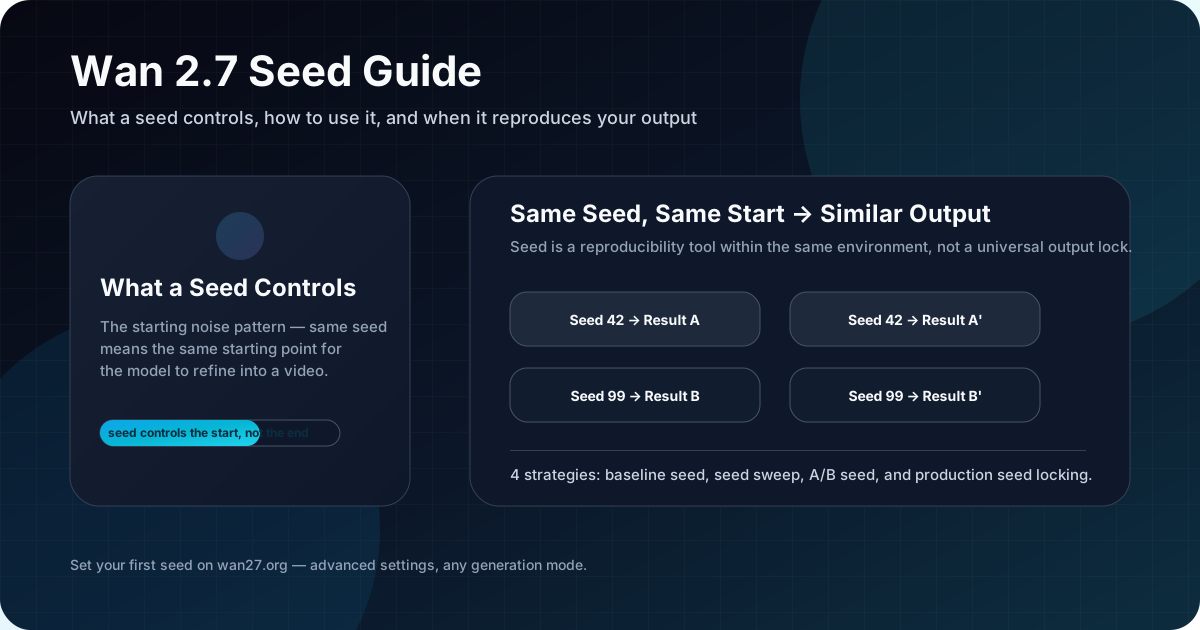
Wan 2.7 Seed Guide: What It Is, How It Works, and Why It Matters
Everything you need to know about the seed parameter in Wan 2.7. What seed means, how to use it for reproducible results, how to set it on wan27.org and in the API, and practical seed strategies that save credits.
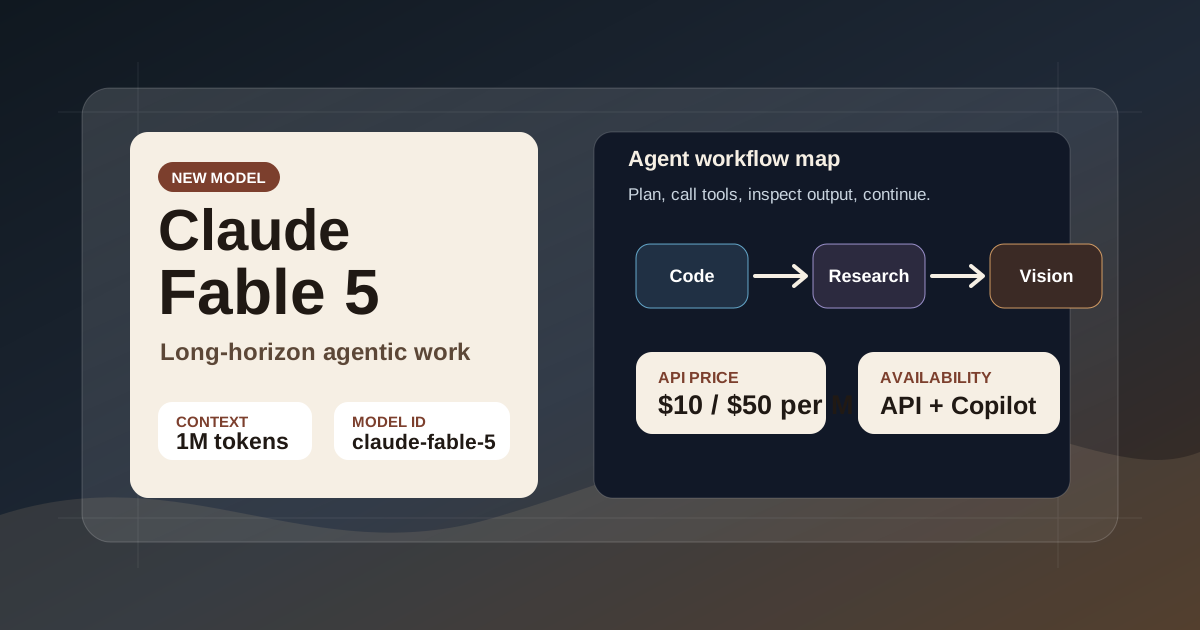
What Is Claude Fable 5? Pricing, Features, and Mythos 5 Compared (2026)
Claude Fable 5 is Anthropic's most capable widely released model for long-horizon autonomous work. Compare pricing ($10/M input), 1M context window, platform availability, and how it stacks up against Mythos 5.
Newsletter
Join the community
Subscribe to our newsletter for the latest news and updates