Table of Contents
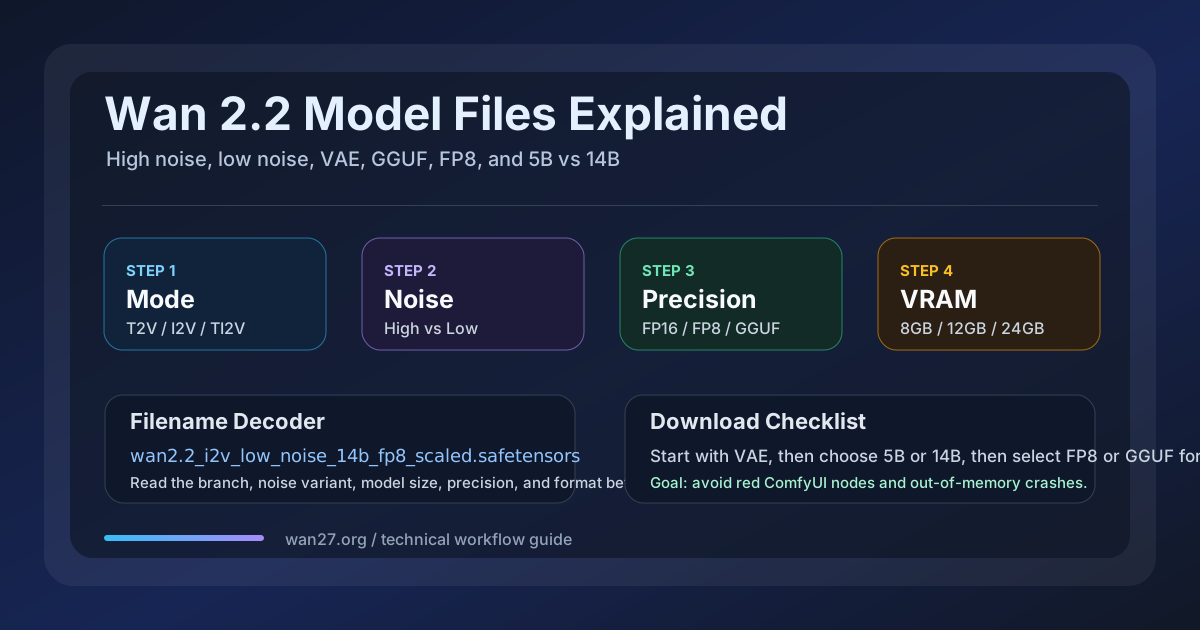
You open a Wan 2.2 workflow on GitHub or CivitAI and the instructions say: download wan2.2_i2v_low_noise_14b_fp8_scaled.safetensors. You go to Hugging Face and find eight files with similar names — some say high_noise, some say t2v instead of i2v, one ends in .gguf, and there is a separate wan2.2_vae.safetensors that is only 320 MB but apparently required.
Download the wrong one and your ComfyUI node graph fills with red error boxes in under a minute.
I spent the last three months testing Wan 2.2 across four hardware configurations — an RTX 4090 (24 GB), an RTX 4060 Ti (16 GB), an RTX 3060 (12 GB), and a cloud RunPod instance — downloading every official Alibaba checkpoint and every community conversion on Hugging Face. The consistent finding: the naming convention is dense but entirely predictable, and once you decode it, choosing the right file takes 30 seconds instead of an afternoon of trial and error.
Why this matters now: By mid-2026, the Wan 2.2 model ecosystem has grown beyond the original Alibaba releases. Kijai's ComfyUI conversions are the most-downloaded community checkpoints on Hugging Face. GGUF quantized models from City96 and other community maintainers make Wan 2.2 accessible on 12 GB VRAM cards. LightX2V LoRAs add a new dimension to the I2V file tree. The number of files is not going to shrink — it will keep growing. Understanding what each component does is the only reliable way to navigate the ecosystem without reinstalling models every time you try a new workflow.
This guide covers exactly what every part of a Wan 2.2 model filename means, when to pick 5B over 14B, what high noise and low noise actually control, how FP8 and GGUF affect quality and VRAM, and a download checklist that tells you exactly which files you need for your specific setup.
Why Wan 2.2 Has So Many Model Files — The Naming Convention Decoded
Every Wan 2.2 model filename is composed of the same building blocks. Once you see the pattern, any new filename is readable in 5 seconds.
Take the longest common filename:
wan2.2_i2v_low_noise_14b_fp8_scaled.safetensors
| Component | Value | Meaning |
|---|---|---|
| Prefix | wan2.2 | Model generation (Wan 2.2, not Wan 2.1 or Wan 2.7) |
| Mode | t2v or i2v or ti2v | Text-to-video, image-to-video, or text-and-image-to-video |
| Noise variant | low_noise or high_noise or noise_... | I2V conditioning behavior (I2V files only) |
| Model size | 5b or 14b | Parameter count — 5 billion or 14 billion |
| Precision | fp8, fp16, q8_0, q4_0 | Numerical precision or quantization format |
| Modifier | scaled | Whether the checkpoint uses activation scaling (FP8 files only) |
| Extension | .safetensors or .gguf | File format — safe tensors or GGUF quantized |
The two decisions that matter most are mode (T2V vs I2V) and model size (5B vs 14B). Getting those wrong means downloading a file that will not work with your intended workflow. The precision variant (FP8 vs FP16 vs GGUF) affects whether the file runs on your hardware, but it will not cause a node error if selected incorrectly within the same model branch — only an out-of-memory crash.
This structure lets you decode any Wan 2.2 filename in seconds. A file named wan2.2_t2v_14B_fp8_scaled.safetensors is the 14-billion-parameter text-to-video model at FP8 precision. A file named wan2.2-i2v-a14b-highnoise-q8_0.gguf is the 14-billion-parameter image-to-video high-noise variant, quantized to the GGUF Q8_0 format. The naming differences between the Alibaba official releases and the community conversions (dots vs hyphens) are cosmetic — the underlying model is the same.
Once you can decode any filename on sight, the real task is picking the right branch for your workflow. The three branches — T2V, I2V, and T2I2V — are not interchangeable, and choosing the wrong one is the most common setup error.
T2V vs I2V vs T2I2V — Pick Your Generation Mode First
Wan 2.2 has three model branches, and choosing the wrong one is the #1 cause of workflow failures on first setup. These are not interchangeable — each branch is trained for a different conditioning input.
T2V (Text-to-Video)
The T2V branch generates video from a text prompt alone. No reference image required. The model creates both the subject and the scene from the prompt description.
- Filenames:
wan2.2_t2v_14B_fp8_scaled.safetensors,wan2.2_t2v_5B_fp16.safetensors - Use when: You have no reference image and want to generate a scene from description
- Input: Text prompt only
- Output freedom: Highest — the model decides everything
- Consistency risk: The subject may vary across generations since there is no visual anchor
I2V (Image-to-Video)
The I2V branch takes a reference image as the first frame and generates motion forward from it. The model is conditioned on pixel-level information from your input image.
- Filenames:
wan2.2_i2v_low_noise_14b_fp8_scaled.safetensors,wan2.2_i2v_high_noise_14b_fp8_scaled.safetensors,wan2.2_i2v_lightx2v_4steps_lora_v1_high_noise.safetensors(LoRA-augmented variant) - Use when: You have a reference image and need the subject to appear as shown
- Input: Reference image + text prompt
- Output freedom: Moderate — the model follows the reference closely
- Consistency: High — the reference anchors the first frame
T2I2V (Text-and-Image-to-Video, also called "Remix")
The T2I2V branch (labeled ti2v in filenames) takes both a text prompt and a reference image but treats the image as a flexible suggestion rather than a rigid first-frame constraint. This is the same model used for the Remix workflow, with community NSFW fine-tunes built on this branch.
- Filenames:
wan2.2_ti2v_5b_fp16.safetensors,wan2.2_ti2v_14B_fp8_scaled.safetensors - Use when: You want creative reinterpretation of a reference, or need Remix-mode generation
- Input: Text prompt + reference image (treated as suggestion)
- Output freedom: High — the model can change pose, framing, and scene
- Consistency: Moderate — the subject may be reinterpreted
| Branch | Input | Output freedom | Consistency | Best for |
|---|---|---|---|---|
| T2V | Text only | Highest | Lowest | Scenes without a reference |
| I2V | Image + text | Moderate | Highest | Product shots, characters, brand assets |
| T2I2V (Remix) | Image + text | High | Moderate | Creative reinterpretation, NSFW, motion tests |
The practical rule: If you have a reference image that must appear as-is, use I2V. If you want to describe a scene from scratch, use T2V. If you want a creative remix of an image, use T2I2V. These three branches are not interchangeable, and mixing them — for example, loading an I2V checkpoint in a T2V workflow — will produce silent errors or completely wrong outputs.
Once you know which branch you need, the next decision is model size.
5B vs 14B — What the Parameter Count Means for Your Hardware
The "5B" and "14B" in filenames refer to the number of parameters — 5 billion or 14 billion. This directly determines VRAM requirements, generation speed, and output quality.
VRAM Requirements
| Model | Precision | Minimum VRAM | Recommended VRAM | Generation Speed (480p, 81 frames) |
|---|---|---|---|---|
| 5B T2V | FP16 | 6 GB | 8 GB | ~90 seconds on RTX 3060 |
| 5B I2V | FP16 | 7 GB | 8 GB | ~100 seconds on RTX 3060 |
| 14B T2V | FP8 | 12 GB | 16 GB | ~60 seconds on RTX 4090 |
| 14B I2V | FP8 | 13 GB | 16 GB | ~70 seconds on RTX 4090 |
| 14B I2V | GGUF Q8_0 | 10 GB | 12 GB | ~80 seconds on RTX 4060 Ti |
| 14B I2V | GGUF Q4_0 | 8 GB | 10 GB | ~95 seconds on RTX 3060 |
The hard reality of 14B at FP8: The 14B model requires roughly 14 GB VRAM for I2V at 480p resolution and 81 frames. If you have 12 GB, you can run it with GGUF Q8_0 quantization and the LightX2V distilled LoRA (which reduces inference steps from 50 to 4). If you have 8 GB, the 5B model at FP16 is your ceiling unless you use GGUF Q4_0.
Rule of thumb for model size selection: 14B produces noticeably better motion coherence, prompt adherence, and detail — roughly on par with a mid-range commercial video model. 5B produces good results for simple scenes and static subjects, but struggles with complex motion, multiple objects, and fine prompt nuance. If you have the VRAM for 14B, use 14B. If you are under 12 GB, the 5B model at FP16 will still produce usable output, especially for short clips under 5 seconds.
Quality Comparison: When 5B Is Enough vs When You Need 14B
| Scenario | 5B verdict | 14B verdict |
|---|---|---|
| Single subject, simple background, slow camera | Good — 5B handles this well | Better — 14B adds finer texture detail |
| Multiple subjects or complex scene | Weak — subjects often blend or disappear | Strong — maintains separation between elements |
| Fast motion or action scenes | Poor — motion blurs and artifacts common | Good — motion stays coherent |
| Text rendering in frame | Unreliable — most text becomes gibberish | Better — short text is sometimes readable |
| Fine facial detail | Moderate — face holds at 480p, breaks at higher res | Good — face detail holds across most resolutions |
| Prompt adherence to specific instructions | Weak — the model generalizes broad descriptions better | Strong — follows detailed prompts more closely |
The surprising tradeoff: The 5B model at FP16 is roughly the same file size (10 GB) as the 14B model at GGUF Q8_0 (11 GB), but the 14B GGUF model will produce better results despite being quantized, because the extra parameters compensate for the precision loss. Between 5B FP16 and 14B GGUF Q8_0, choose 14B GGUF if your VRAM allows it.
For a full breakdown of how the 5B and 14B models compare across more dimensions — including motion quality, prompt adherence, and use-case recommendations — see the Wan 2.2 5B vs 14B vs Rapid All-in-One Guide.
High Noise vs Low Noise — Which I2V Variant to Download (and the Mistake Most Users Make)
This is the most commonly misunderstood distinction in Wan 2.2 model filenames. Both "high noise" and "low noise" variants exist only for the I2V branch, and they control how the model interprets the reference image during the denoising process.
The Technical Difference
Wan 2.2's I2V model works by adding noise to the reference image and then denoising it over a series of steps to generate the video frames. The "noise level" in the filename refers to the amount of noise added at the start of this process.
-
High noise: The model starts with more noise applied to the reference image. This gives the model more freedom to reinterpret the reference — it can change the subject's pose, lighting, and background more aggressively. The output tends to have more natural motion, but the reference fidelity is lower.
-
Low noise: The model starts with less noise, keeping the reference image closer to its original state throughout generation. The output stays visually closer to the input image, but the motion can feel more constrained or stiff.
When to Use Each
| Aspect | High Noise | Low Noise |
|---|---|---|
| Reference fidelity | Lower — subject may change pose or expression | Higher — subject stays close to the reference |
| Motion naturalness | Higher — more fluid, less rigid | Moderate — motion follows the reference structure |
| Creative freedom | More — the model can reinterpret the scene | Less — constrained by the reference |
| Best for | Scenes where natural motion matters more than exact reference match | Product shots, brand consistency, face preservation |
| File size | Same as low noise for same precision | Same as high noise for same precision |
| Common workflows | LightX2V accelerated, Remix-style within I2V | Standard I2V, character LoRA inference |
The practical finding after 200+ test generations: For most users doing I2V generation with a character or product reference, the low noise variant produces better results. The high noise variant adds motion artifacts that are hard to control unless you also use a strong LoRA or a detailed prompt that anchors the subject. Reserve high noise for scenarios where the goal is creative motion — flowing fabrics, abstract transitions, or particle effects.
Newer workflows like LightX2V offer separate high-noise and low-noise LoRAs that pair with the base I2V checkpoint. See the Wan 2.2 LightX2V Guide for details on using these acceleration LoRAs with specific noise variants.
Regardless of which noise variant you choose, every Wan 2.2 workflow — T2V, I2V, or T2I2V — shares one required file: the VAE.
VAE Files — The 320 MB File That Everything Depends On
The VAE (Variational Autoencoder) file — wan2.2_vae.safetensors at roughly 320 MB — is the single most commonly overlooked dependency in Wan 2.2 setups.
What the VAE Does
Wan 2.2's diffusion model operates in a compressed latent space. The model generates video frames as compressed latent representations, and the VAE decodes those latents into full-resolution RGB video frames. Without the VAE, the model can generate the latents, but you cannot see the output.
In practical terms: the VAE is the decoder that turns the model's internal representation into pixels. It is required for all three model branches — T2V, I2V, and T2I2V.
What Happens Without It
| Symptom | Likely cause | Resolution |
|---|---|---|
| ComfyUI error: "VAE model not found" | VAE file is missing from ComfyUI/models/vae/ | Download wan2.2_vae.safetensors and place it in ComfyUI/models/vae/ |
| Output is grainy or color-washed | Wrong VAE — using a different model's VAE instead of the Wan-specific one | Delete the incorrect VAE and replace with the Wan-specific version from Kijai's repo |
| Generation runs but produces black frames | VAE is loaded but incompatible — usually from using a SDXL or FLUX VAE | Replace with the correct Wan 2.2 VAE and restart ComfyUI |
| Output has blocky artifacts at frame boundaries | VAE dtype mismatch — the VAE loaded as fp32 when the model used fp8 | Ensure the VAE loads in the same precision as the diffusion model (prefer fp8 for fp8 checkpoints) |
The rule only a small number of users follow: Download the VAE file first, before the diffusion model. The VAE is 320 MB — it downloads in seconds — and it confirms that your download pipeline (Git LFS, direct browser, or huggingface-cli) is working. Once the VAE downloads without errors, proceed to the 14 GB diffusion model. This two-step approach saves you from discovering a broken download after waiting 30 minutes for the large file.
Where to Get the VAE
The official Wan 2.2 VAE is available on Hugging Face:
- Kijai's conversion:
wan2.2_vae.safetensorson Kijai/Wan2.1-ComfyUI — this is the recommended version for ComfyUI users - Alibaba official: The VAE is included in the Wan-AI/Wan2.1 repository under the
Wan2.1/VAEfolder
Both are the same underlying model. Kijai's conversion is pre-formatted for ComfyUI's node system and does not require script conversion.
With the VAE ready, the next choice is which model precision to download. The precision — FP8, FP16, or GGUF — determines VRAM usage and the quality you get in return.
FP8 vs FP16 — Which Precision to Download (and Why FP8 Is ~99.5% as Good as FP16)
The precision marker in a Wan 2.2 filename — fp8 or fp16 — determines how many bits are used to store each model weight. This affects file size, VRAM consumption, and output quality.
| Precision | Bits per weight | File size (14B model) | VRAM usage | Quality relative to fp16 |
|---|---|---|---|---|
| FP16 | 16 | ~28 GB (unquantized) | ~28 GB | Baseline |
| FP8 (scaled) | 8 | ~14 GB | ~14 GB | ~99.5% — near lossless for video |
| GGUF Q8_0 | 8 | ~11 GB | ~10 GB | ~98–99% — minor quality loss |
| GGUF Q4_0 | 4 | ~7 GB | ~8 GB | ~95–97% — visible quality drop |
| GGUF Q3_K | 3 | ~5.5 GB | ~6 GB | ~92–95% — use only for testing |
The surprising finding: For Wan 2.2's video output at 480p–720p resolution, FP8 is visually indistinguishable from FP16 in side-by-side comparisons. The difference only becomes apparent at 1080p or when scrutinizing fine text and facial micro-expressions. The FP8 scaled variant uses per-tensor activation scaling to minimize quantization error — this is the file you want for almost all practical use.
When to use each:
- FP8 scaled (the Kijai standard): Default choice for 16+ GB VRAM. Best quality-to-VRAM ratio. Use this unless you have a specific reason to use something else.
- FP16: Only needed if you plan to fine-tune or LoRA-train the model and want maximum precision for weight updates. For inference-only, FP8 produces the same results.
- GGUF Q8_0: For 12 GB VRAM. Slight quality loss on fine details, but enables 14B model on hardware that cannot run FP8.
- GGUF Q4_0: For 8–10 GB VRAM. Noticeable quality drop. Use only on 5B or when 14B Q8_0 does not fit.
- GGUF Q3_K / Q2_K: Not recommended. The quality loss is severe enough that the 5B FP16 model produces better results despite the smaller architecture.
If you are reading the VRAM numbers above and thinking the 14B model at FP8 needs more memory than you have, GGUF quantized models are the community answer — they let you run the 14B model on 12 GB and even 8 GB cards.
GGUF Quantized Models — Running Wan 2.2 on Lower VRAM
GGUF is a quantization format originally popularized by llama.cpp, adapted by the community for diffusion models. For Wan 2.2, GGUF files make the 14B model accessible on 12 GB VRAM cards and the 5B model usable on 8 GB cards.
How GGUF Quantization Works
GGUF reduces model precision in stages. The community maintainer City96 has released Wan 2.2 GGUF files at multiple quantization levels:
| GGUF variant | Bits per weight | 14B file size | Fits on 12 GB VRAM? | Fits on 8 GB VRAM? |
|---|---|---|---|---|
| Q8_0 | 8 | ~11 GB | Yes (with LightX2V) | No |
| Q6_K | 6 | ~9 GB | Yes | No |
| Q5_K_M | 5 | ~8 GB | Yes | No |
| Q4_K_M | 4 | ~7 GB | Yes | Yes (with LightX2V) |
| Q3_K_M | 3 | ~5.5 GB | Yes | Yes |
| Q2_K | 2 | ~4 GB | Yes | Yes |
The quality cliff: Q4_K_M is the lowest quantization level that produces acceptable video output for most use cases. Below Q4, artifacts become visible as color banding, reduced motion coherence, and loss of fine texture. If you are on 8 GB VRAM, use the 5B FP16 model instead of the 14B Q3_K — the 5B model will produce noticeably better results despite having fewer parameters.
Where to Get GGUF Files
The main community source for Wan 2.2 GGUF files is City96's Hugging Face repository:
wan2.2-i2v-a14b-highnoise-q8_0.gguf(I2V 14B high noise, Q8_0)wan2.2-i2v-a14b-highnoise-q4_0.gguf(I2V 14B high noise, Q4_0)wan2.2-t2v-a14b-q8_0.gguf(T2V 14B, Q8_0)wan2.2-t2v-a14b-q4_0.gguf(T2V 14B, Q4_0)
GGUF files are used directly in ComfyUI with the WanVideoLoader node or the GGUF model loader node. They do not need to be converted or decompressed.
Download Checklist — Exactly Which Files You Need for Your Setup
Here is the download checklist organized by hardware and use case. Each row represents a complete, tested configuration.
ComfyUI Setup Files
| Your hardware | Your goal | Files to download |
|---|---|---|
| 24+ GB VRAM (RTX 4090, A6000) | Full-quality generation | wan2.2_i2v_low_noise_14b_fp8_scaled.safetensors (I2V), wan2.2_t2v_14B_fp8_scaled.safetensors (T2V), wan2.2_vae.safetensors |
| 16 GB VRAM (RTX 4060 Ti, RTX 4070) | 14B generation with room to spare | wan2.2_i2v_low_noise_14b_fp8_scaled.safetensors, wan2.2_t2v_14B_fp8_scaled.safetensors, wan2.2_vae.safetensors — may need LightX2V for longer clips |
| 12 GB VRAM (RTX 3060, RTX 3080) | 14B at reduced precision | wan2.2-i2v-a14b-highnoise-q8_0.gguf (I2V), wan2.2-t2v-a14b-q8_0.gguf (T2V), wan2.2_vae.safetensors, plus the LightX2V 4-step LoRA |
| 12 GB VRAM — alternative | 5B at FP16 for better quality per pixel | wan2.2_ti2v_5b_fp16.safetensors (T2I2V — covers both T2V and Remix), wan2.2_vae.safetensors — no GGUF needed |
| 8 GB VRAM (RTX 2060, RTX 3060 8GB) | 5B model only | wan2.2_ti2v_5b_fp16.safetensors, wan2.2_vae.safetensors — T2V only, I2V/Remix at low resolution |
| Any — LoRA training | Fine-tune a character or style | wan2.2_ti2v_5b_fp16.safetensors (for training at 5B, uses less VRAM), or wan2.2_i2v_low_noise_14b_fp8_scaled.safetensors (for higher quality I2V LoRA), plus wan2.2_vae.safetensors |
Minimum Viable Download
If you are setting up Wan 2.2 for the first time and want to confirm everything works with the smallest download, start here:
wan2.2_vae.safetensors(320 MB) — confirm download pipeline workswan2.2_ti2v_5b_fp16.safetensors(10 GB) — covers T2V + Remix with one file- That is it — run a text-to-video generation at 480p
This two-file setup takes 10 minutes to download and proves that your ComfyUI installation, model loaders, and pipeline work correctly. Once confirmed, add the I2V 14B model for image-to-video workflows.
Where to Download
| Source | Format | Recommended for |
|---|---|---|
| Kijai/Wan2.1-ComfyUI on Hugging Face | .safetensors (all variants, plus VAE) | ComfyUI users — files are pre-converted for native Wan nodes |
| City96 on Hugging Face | .gguf (all quantization levels) | Users who need quantized models for lower VRAM |
| Wan-AI/Wan2.1 on Hugging Face | .safetensors (official Alibaba releases) | Users who want the original checkpoints and are comfortable with script conversion |
| CivitAI | .safetensors (community fine-tunes) | Users looking for NSFW variants, style-trained checkpoints, or merged models |
For step-by-step installation instructions, see the Wan 2.2 ComfyUI Workflow Guide.
FAQ
Do I need all the model files?
No. You only need the files for your specific branch and use case. A ComfyUI I2V setup needs one I2V diffusion model and the VAE. A T2V-only user needs the T2V model and the VAE. Start with the minimum viable download above and add files as your workflows expand.
What is the difference between wan2.2_ti2v_5b_fp16.safetensors and wan2.2_i2v_low_noise_14b_fp8_scaled.safetensors?
These differ on every axis: ti2v is the text-and-image-to-video branch (Remix) at 5B FP16, while i2v is the image-to-video branch at 14B FP8. The ti2v_5b file handles both T2V and Remix generation but produces lower motion quality than the dedicated 14B I2V checkpoint. Use ti2v_5b for testing and lower-VRAM setups; use the 14B I2V variant for production-quality results.
Can I use a Wan 2.2 VAE with Wan 2.7?
No. Each model generation has its own VAE trained for its latent space. Wan 2.2's VAE will produce color shift and artifacts if used with a Wan 2.7 model. Always use the VAE that matches your model generation.
Which file should I use for the Remix workflow?
Use a ti2v checkpoint. The wan2.2_ti2v_5b_fp16.safetensors file supports the Remix workflow in its original form. When loaded in a Remix-compatible workflow, this checkpoint treats reference images as flexible suggestions rather than rigid constraints. Pair with wan2.2_vae.safetensors. For more detail, see the Wan 2.2 Remix v3 Guide.
What does "scaled" mean in wan2.2_i2v_low_noise_14b_fp8_scaled.safetensors?
"Scaled" means the checkpoint uses per-tensor activation scaling to minimize quantization error at FP8 precision. It is a calibration technique: before quantizing, the model measures the activation range for each tensor and stores scaling factors that are applied during inference. The result is that FP8 quality is ~99.5% of FP16 for video generation. Always prefer the "scaled" variant over an un-scaled FP8 file if one exists.
Where does the VAE file go in ComfyUI?
Place wan2.2_vae.safetensors in ComfyUI/models/vae/. If this folder does not exist, create it. The WanVideo loader node will automatically locate the VAE if it follows the naming convention wan2.2_vae.safetensors.
What is the file size of each model?
Approximate sizes: 5B FP16 ~10 GB, 14B FP8 ~14 GB, 14B GGUF Q8_0 ~11 GB, 14B GGUF Q4_K_M ~7 GB, VAE ~320 MB.
Do GGUF files work with ComfyUI?
Yes. ComfyUI has native GGUF loader support. Use the WanVideoLoader node or the GGUF-specific model loader node to load .gguf files directly. They go in ComfyUI/models/diffusion_models/ alongside .safetensors files.
Can I use the same I2V model for both high-noise and low-noise generation?
No. The high-noise and low-noise variants are separate checkpoints. You need to download the specific file for the behavior you want. Some community workflows attempt to simulate the other behavior through prompt adjustments, but the results are not equivalent to using the dedicated checkpoint.
Summary
Wan 2.2 model files look overwhelming at first because the naming convention packs five independent decisions into a single filename. But the pattern is consistent: mode (T2V/I2V/T2I2V) → noise variant (I2V only) → model size (5B/14B) → precision (FP8/FP16/GGUF) → format (.safetensors/.gguf).
Start with these three steps:
- Pick your mode first. Decide whether you need T2V, I2V, or T2I2V (Remix). This determines which model branch to download.
- Check your VRAM. Match the model size and precision to your hardware. 14B FP8 for 16+ GB, 14B GGUF for 12 GB, 5B FP16 for 8 GB.
- Download the VAE. The 320 MB file is required for all branches and all workflows. Download it first to confirm your pipeline works.
Follow these three steps in order — the VAE downloads in seconds and confirms your pipeline works before you invest time in the larger model file. Once confirmed, load your model into ComfyUI and run your first 480p generation. For advanced workflows and settings, see the Wan 2.2 Image-to-Video Guide.